
1. Getting started
Download FoodRay AI from the App Store (iPhone) or Google Play (Android) and sign in with Google or, on iPhone, with Sign in with Apple. A new account receives 20 free AI connections as a welcome bonus, enough to try meals, photos, receipts and menus for several days. After that you get 5 free AI connections every month. The services that do not use Google Gemini are always guaranteed free of charge.
First setup (5 minutes)
- Open the menu and choose Settings → Select Language: FoodRay AI is available in 11 languages, with native voice. Available languages: English (EN), Italian (IT), French (FR), Spanish (ES), German (DE), Japanese (JA), Korean (KO), Chinese (ZH), Russian (RU), Arabic (AR) and Hebrew (HE).
- Choose your units under Settings → Units (15 units available, metric or traditional).
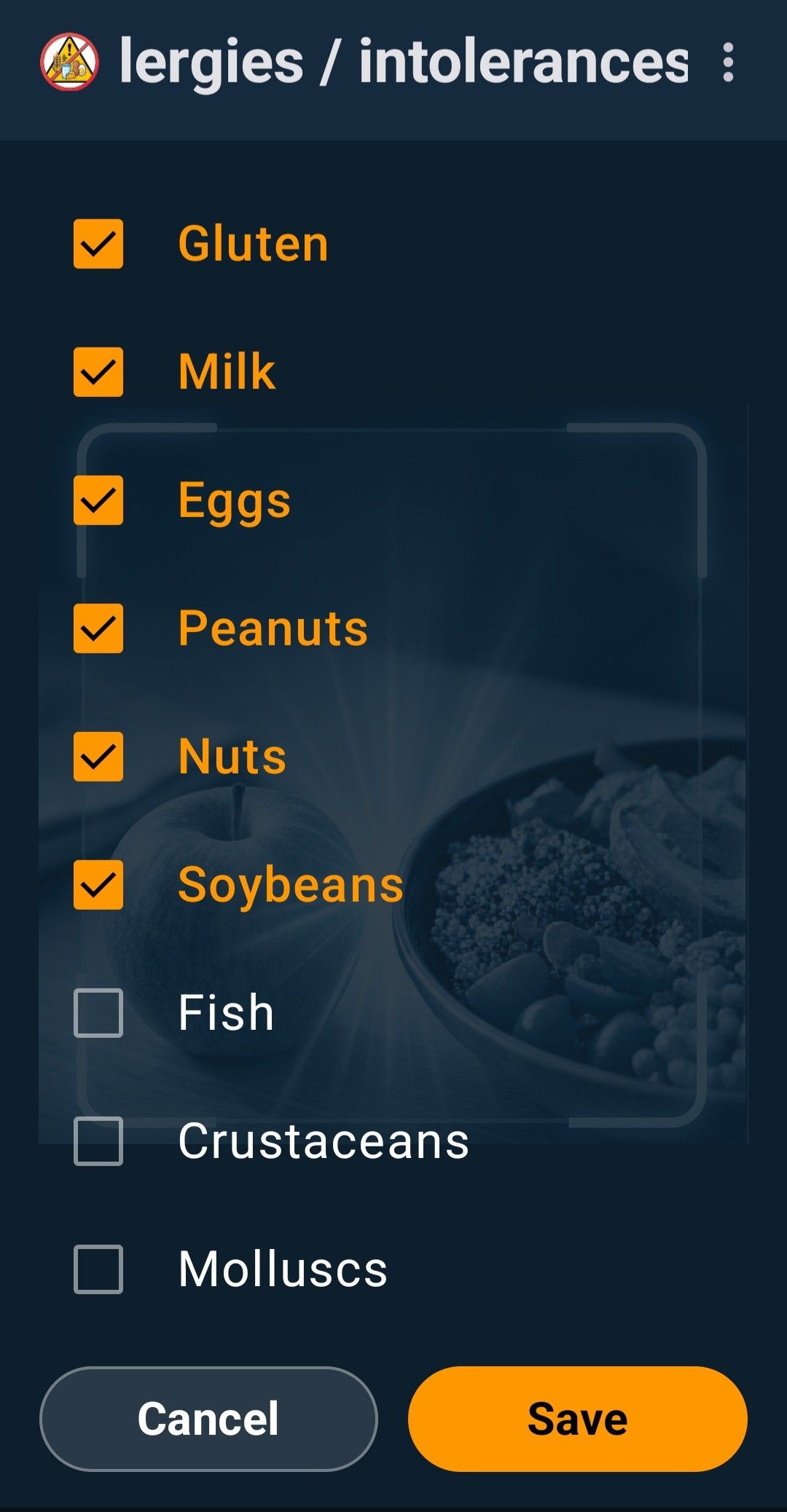
- Open My allergies / intolerances and tick everything that applies to you.
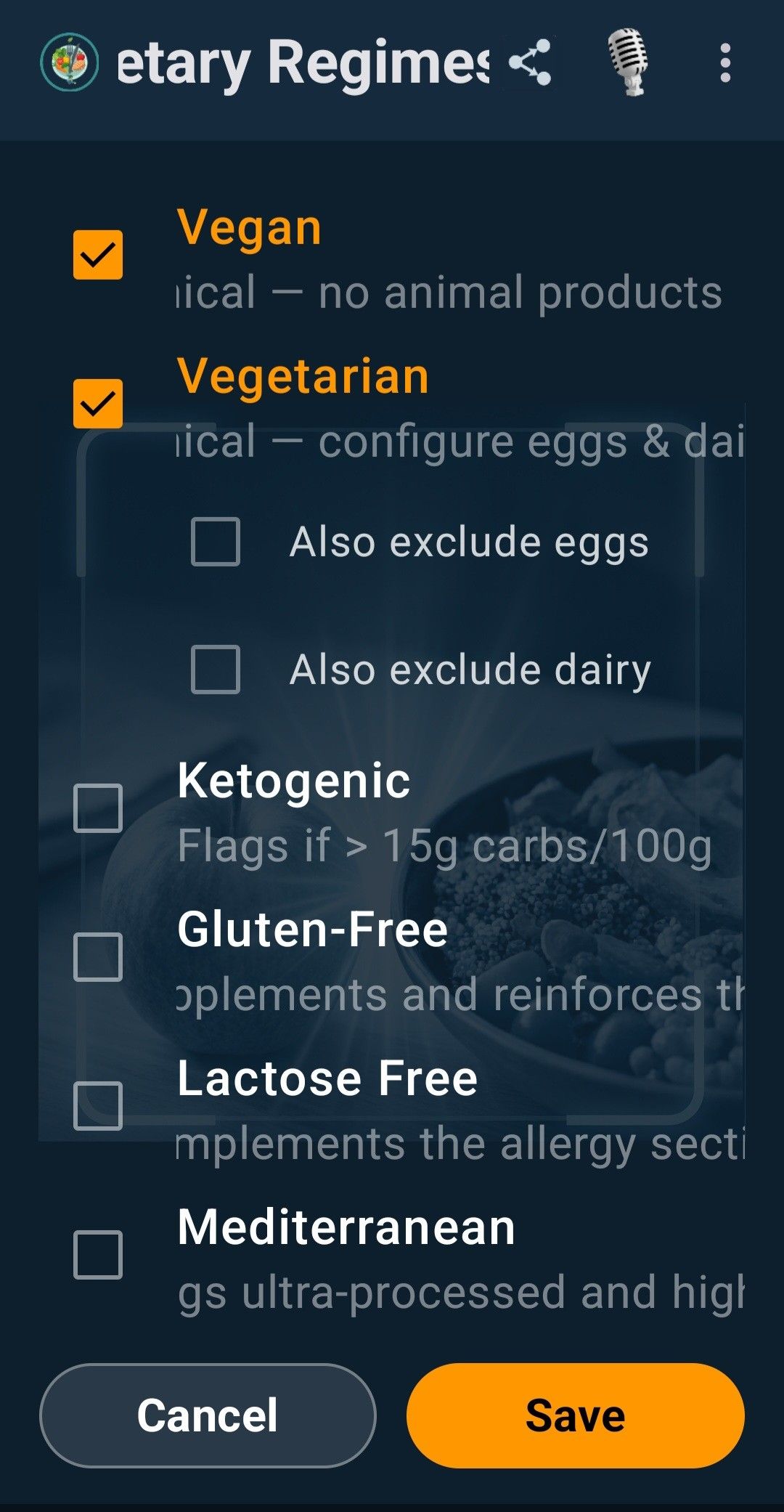
- Open Dietary Regimes and choose the diets you follow, if any.
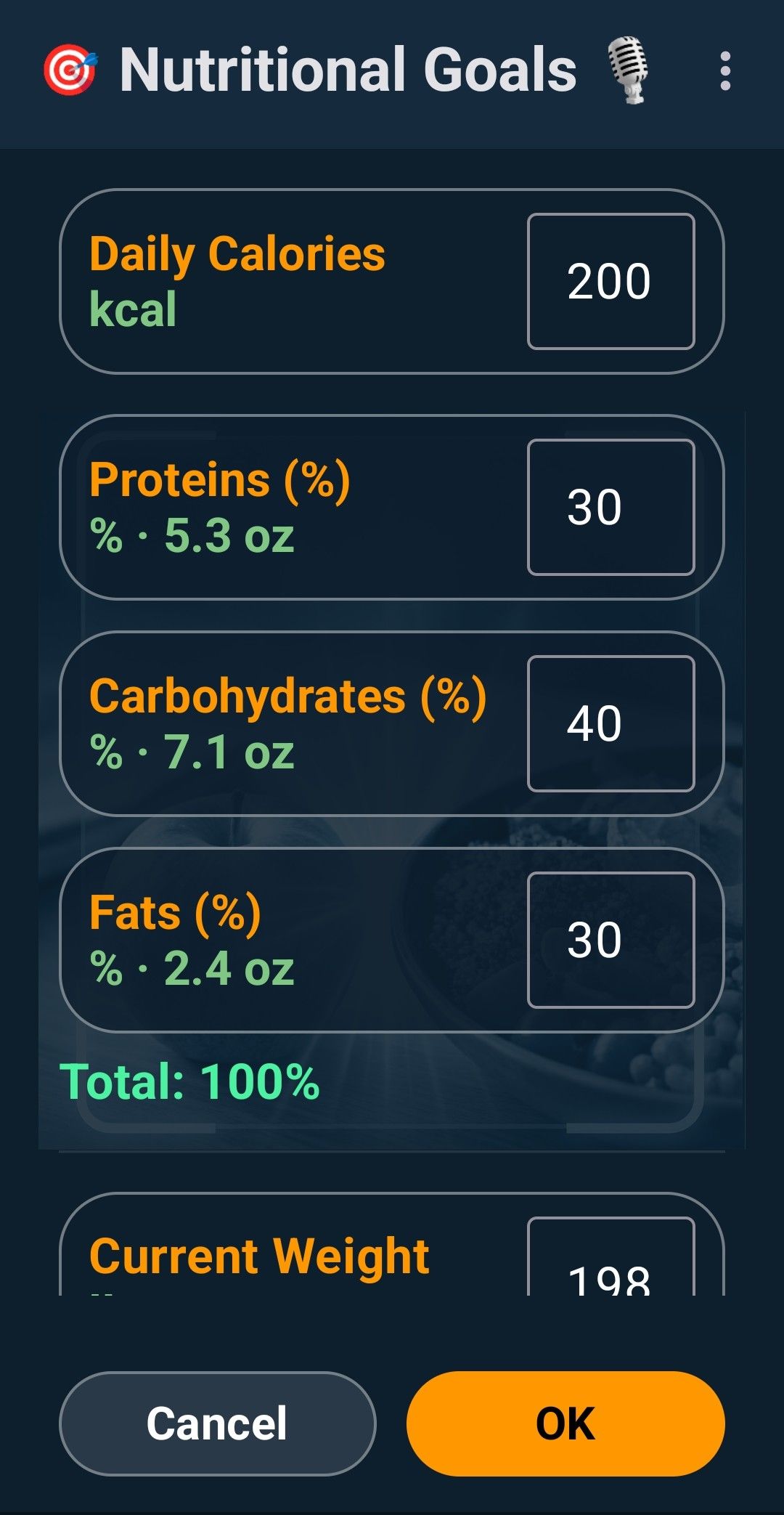
- Open Nutritional Goals to set your daily calories, the split between proteins, carbohydrates and fats, and your current weight.
The main menu
The menu is organised in sections. You can reach everything from there:
- A.I. Functions: Fridge Scan, Receipt Analysis, Nutritional Coach, Restaurant Menu.
- Daily Management & Shopping: Diary, Shopping List, Anti-Waste Recipes.
- Personal Profiles & Health: Nutritional Goals, My allergies / intolerances, Dietary Regimes.
- Tracker & Wellness: Weight History, Physical Activity, Nutritional Trend, Fasting Timer, Menstrual Calendar.
- Archive & Interaction: Conversations, History, Favorites, Settings, Sign Out.
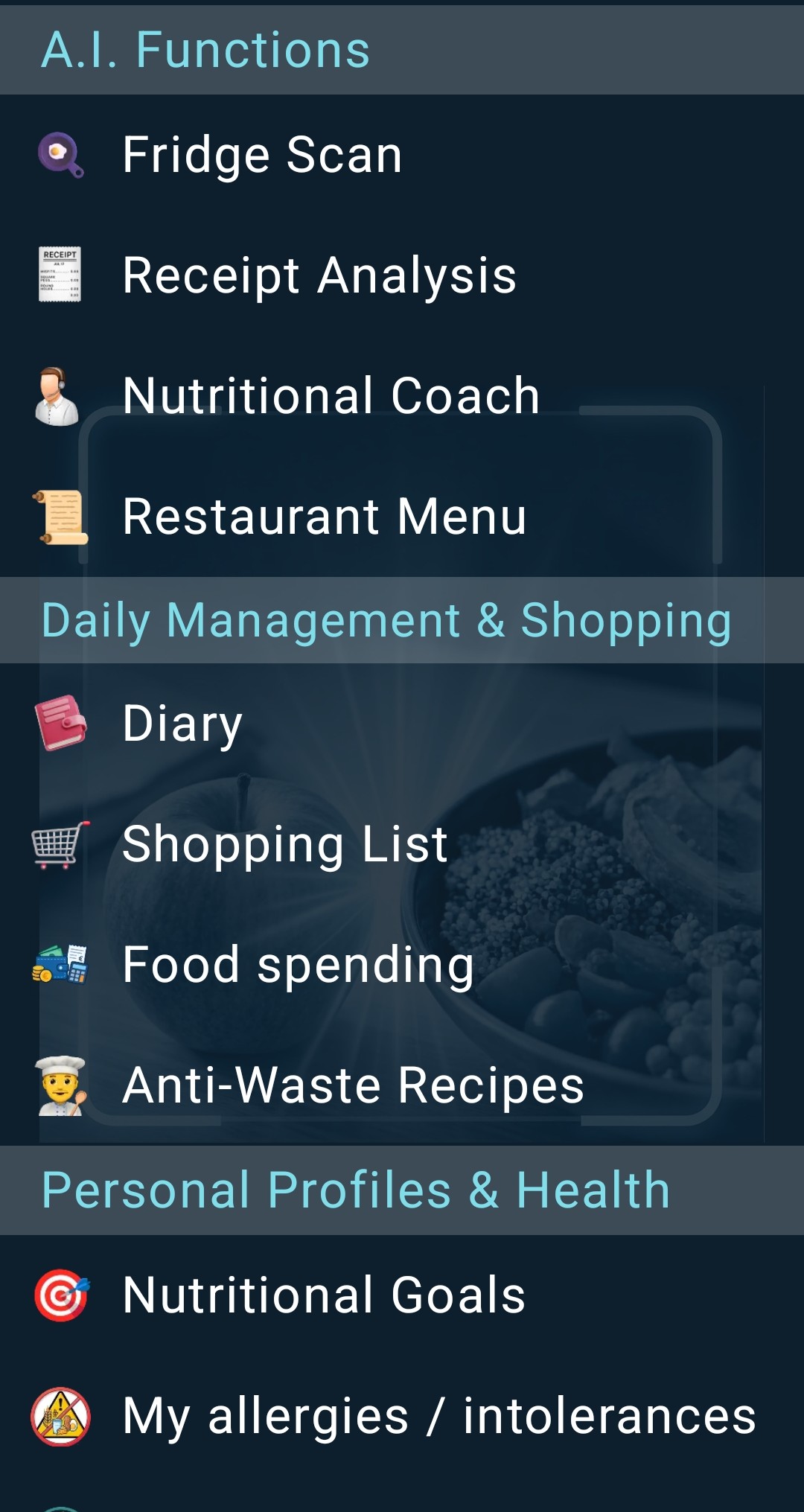
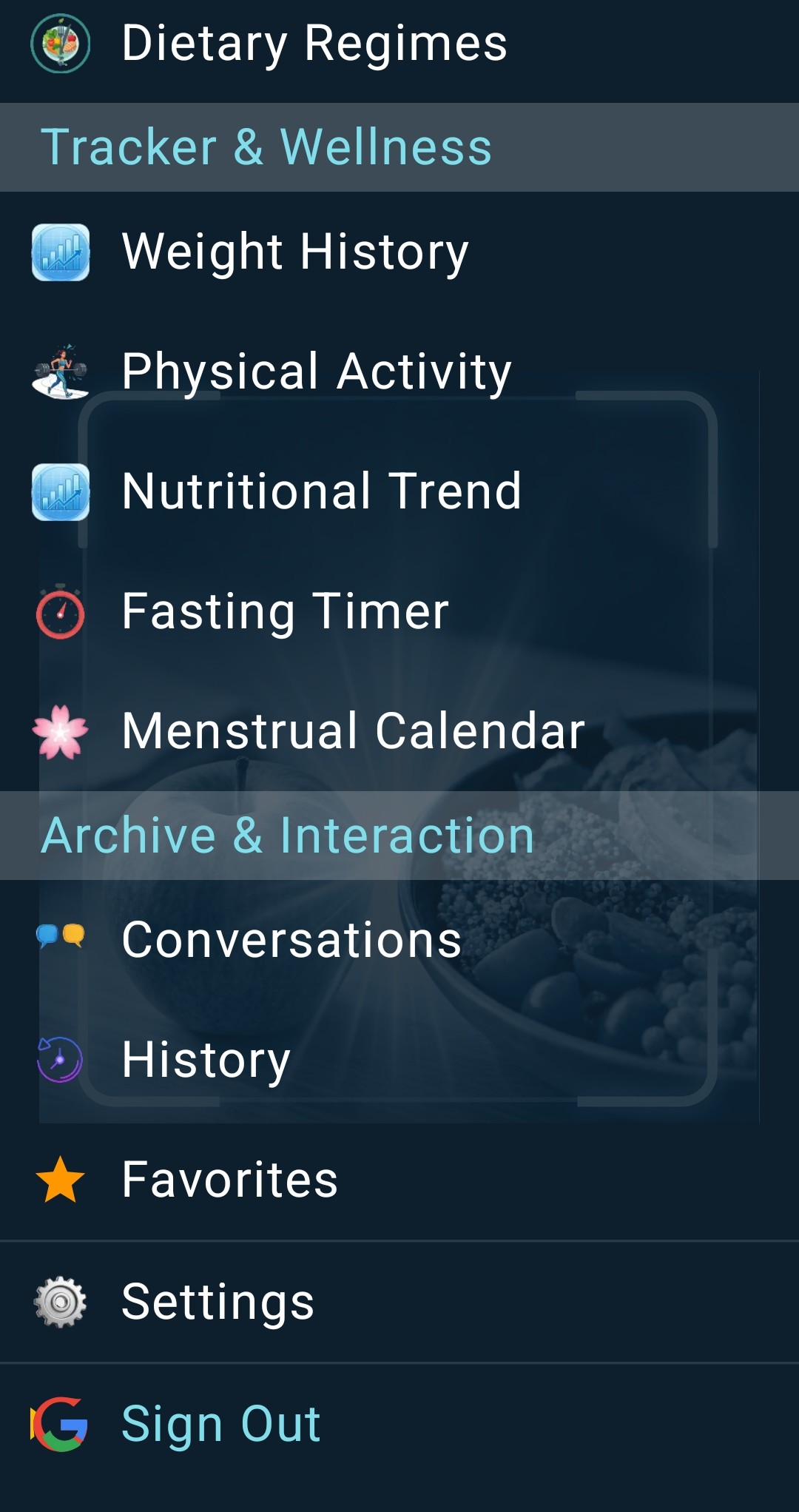
To choose which side the menu appears on, open Settings and select Side menu. You can place it on the right or left.
2. Logging what you eat
There are three ways to add food. Pick the one that suits the moment: scan a barcode, photograph the dish, or simply say it using voice commands.
Scan a barcode
- Open the scanner from the home screen.
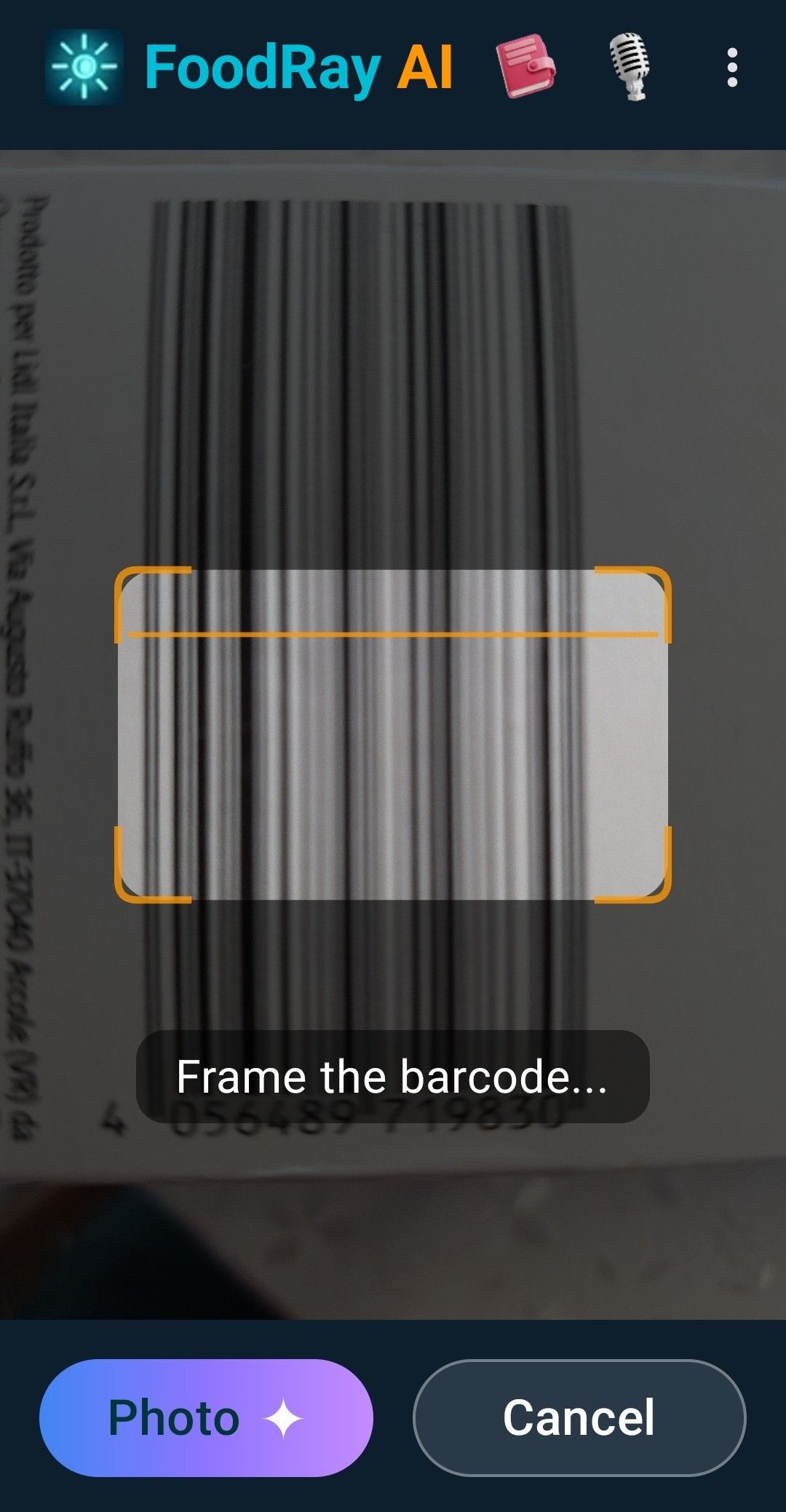
- Frame the barcode inside the box. The app looks the product up on Open Food Facts, the collaborative database of packaged products, completes vitamins and minerals with the official data of the US Department of Agriculture (USDA) and checks it against the European RASFF alerts (Rapid Alert System for Food and Feed).
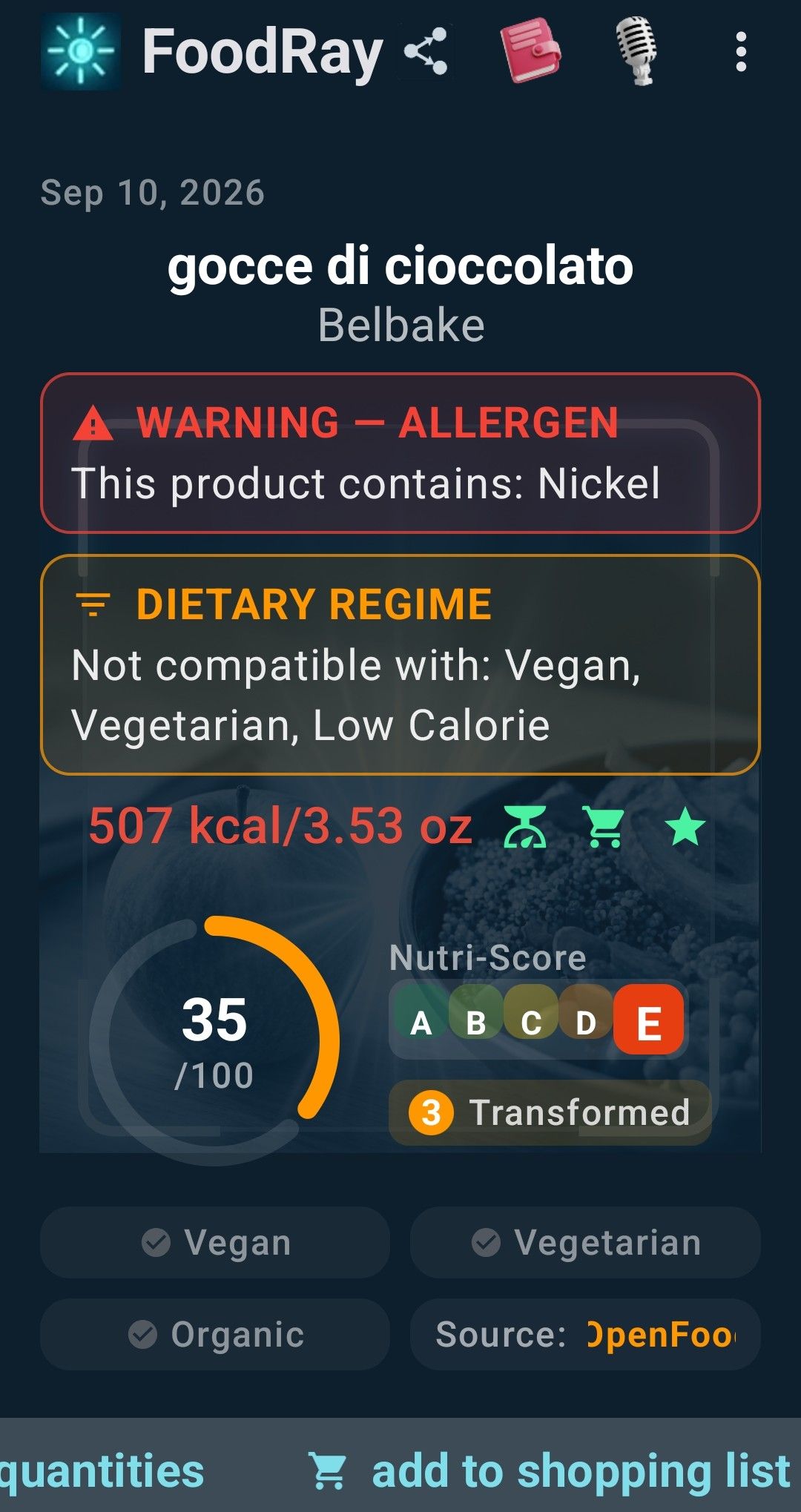
- You get the product card with calories, scores, allergens and diet compatibility.
If the product is not in the database, tap Photo to get an AI estimate. Estimates are always marked as AI estimate, not verified.
Photograph a dish
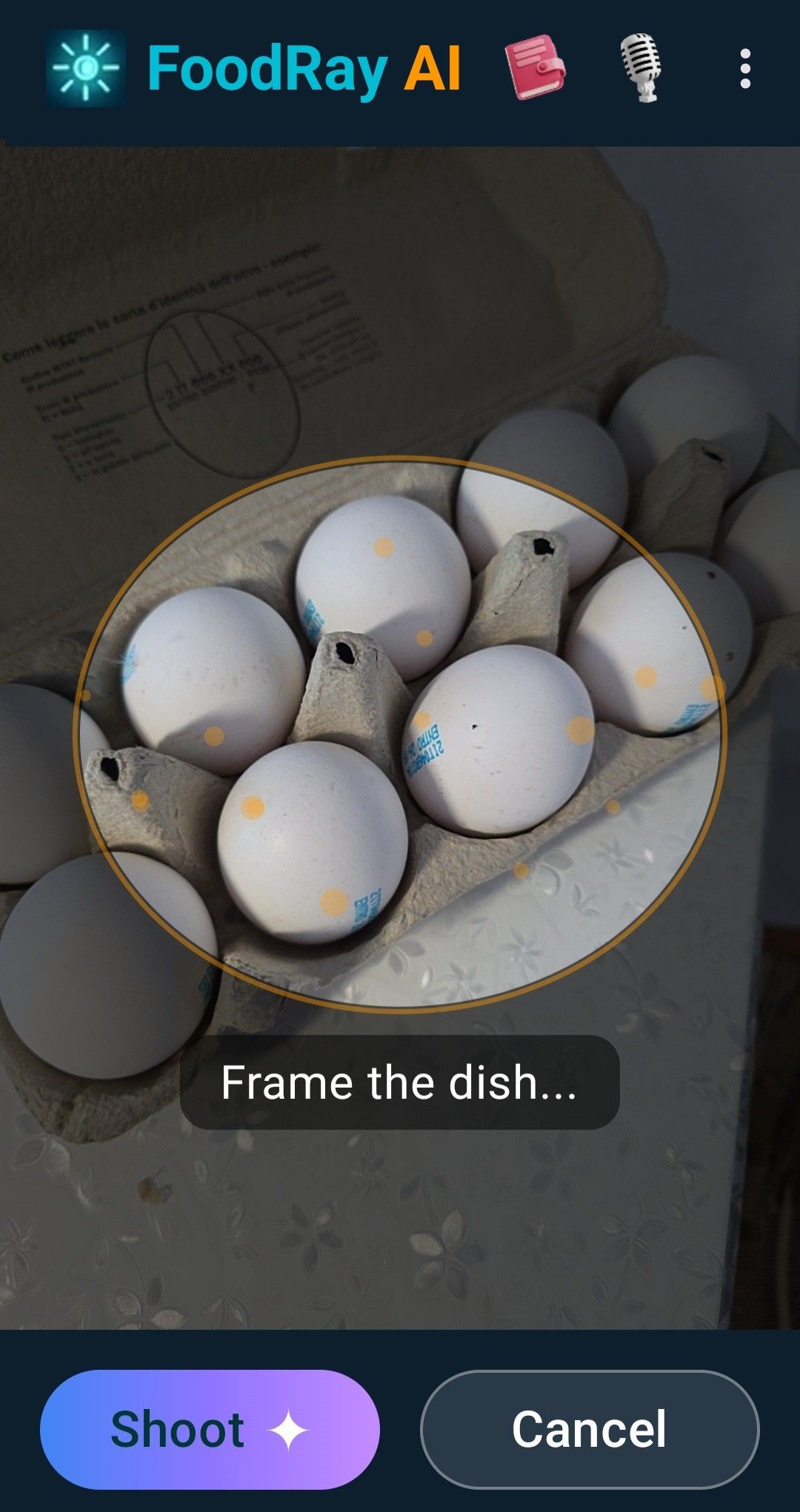
Tap Photo, frame the whole dish in good light and press Shoot. The AI recognises the food and estimates portions and nutrients. The same method works for ready meals, ingredients and restaurant menus.
Say it
Tap the microphone in the top bar and say, for example, "150 grams of pasta". The app understands name and quantity and adds the entry to your diary, without touching the screen. You can also type the same text.
Favorites
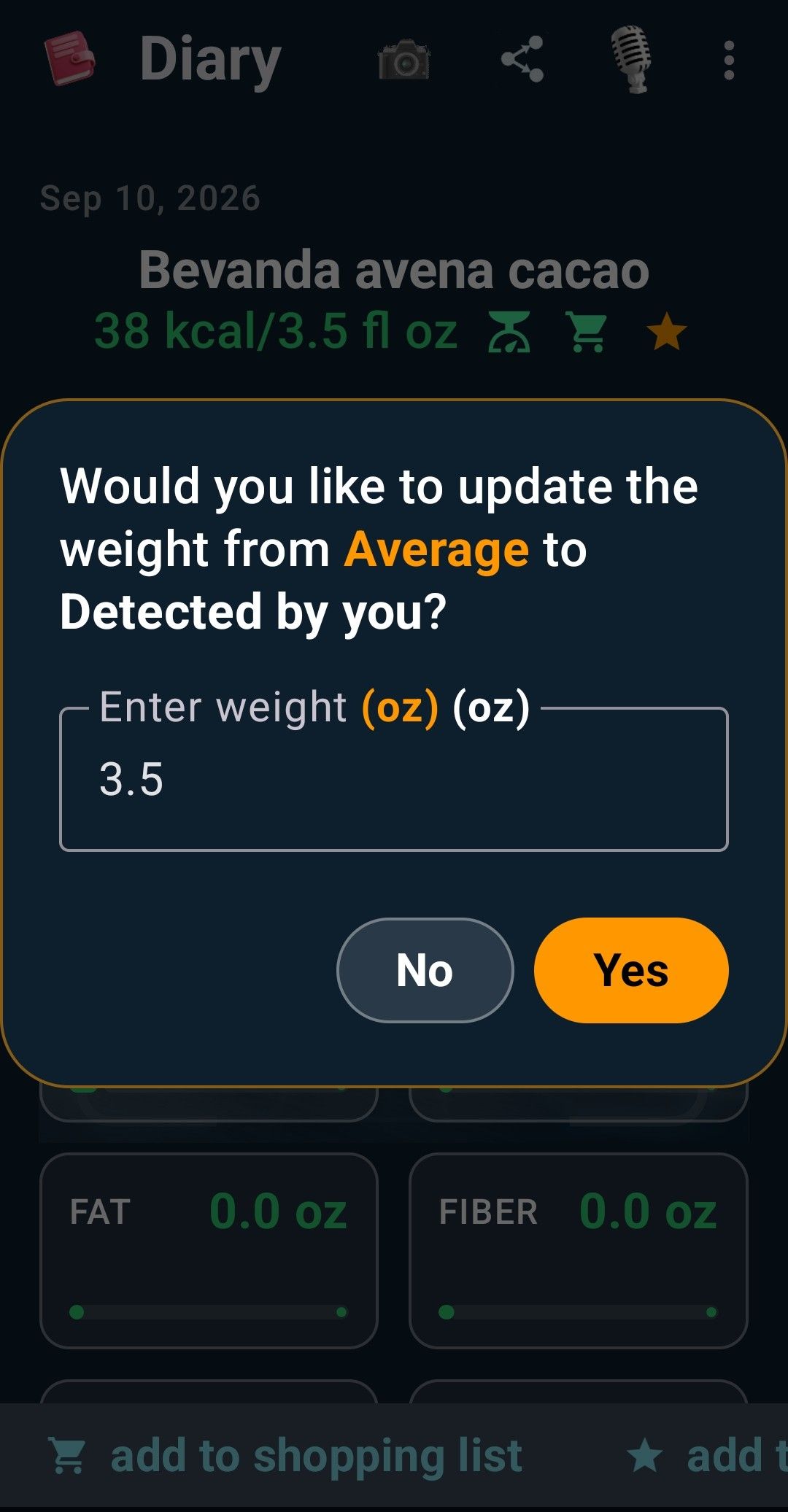
Meals you eat often can be saved with the star on the result card. In Favorites you find them again with a tap, sorted by Most used or Recent, with a counter of how many times you used them. You can add them to the shopping list or remove them.
3. The Diary
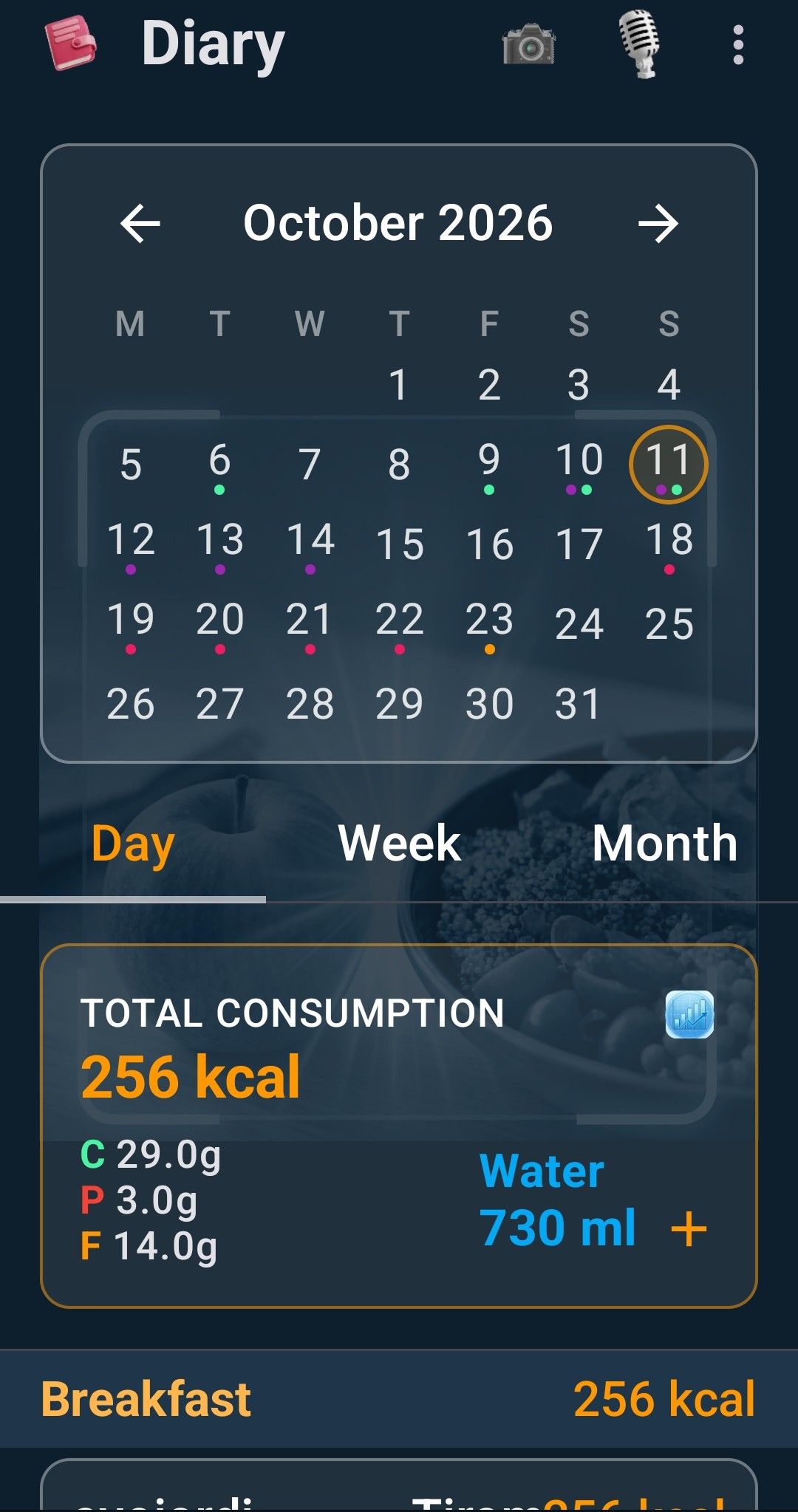
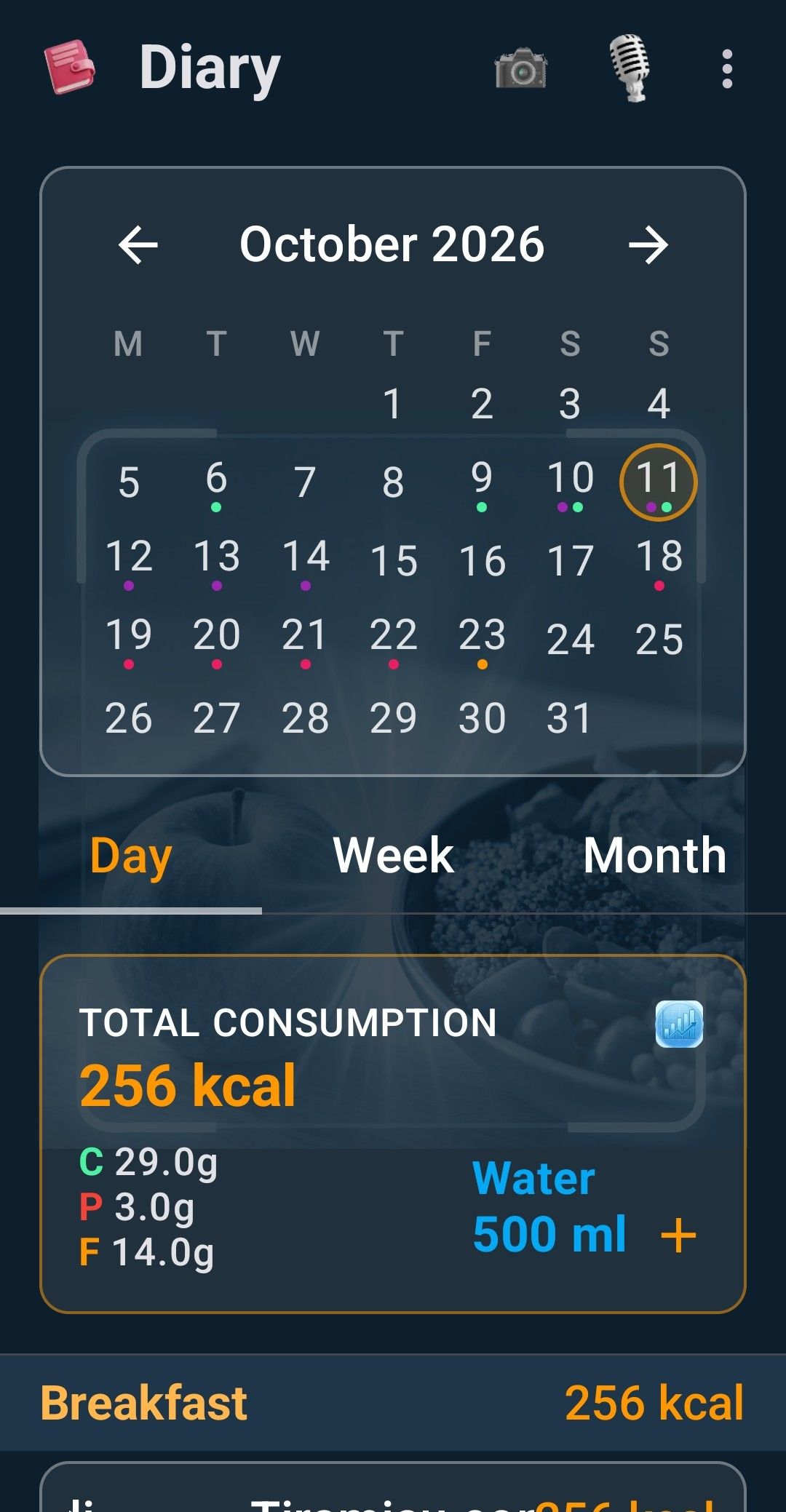
On iPhone 1.1, use + and − to adjust water for the displayed day. Voice commands with a number and no unit ask for confirmation. Find saved fridge recipes in the food waste recipes section.
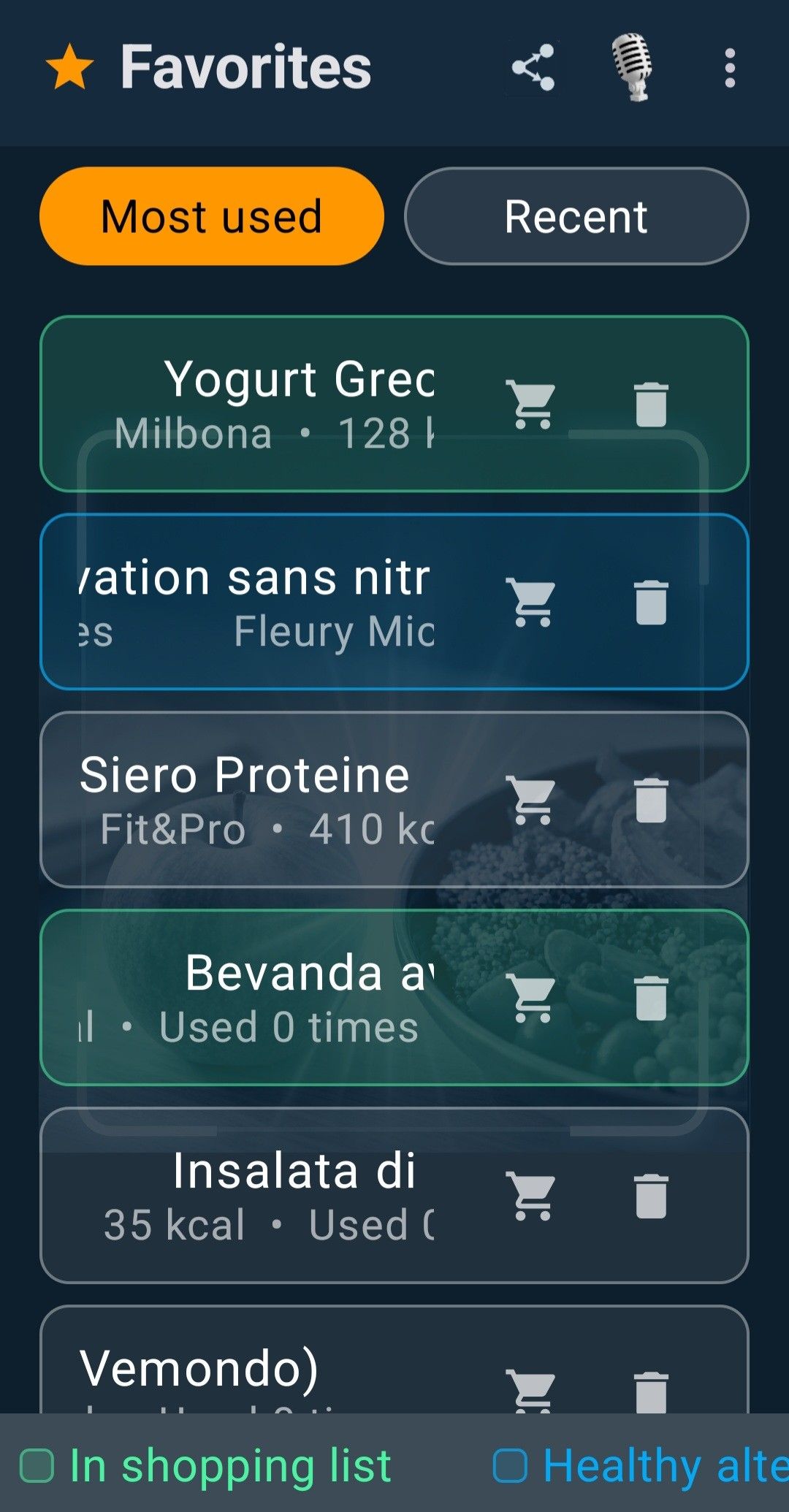
The Diary collects everything you log, with the day's total calories and macros. Switch between Day, Week and Month and tap a date on the calendar to go back in time.
Log water
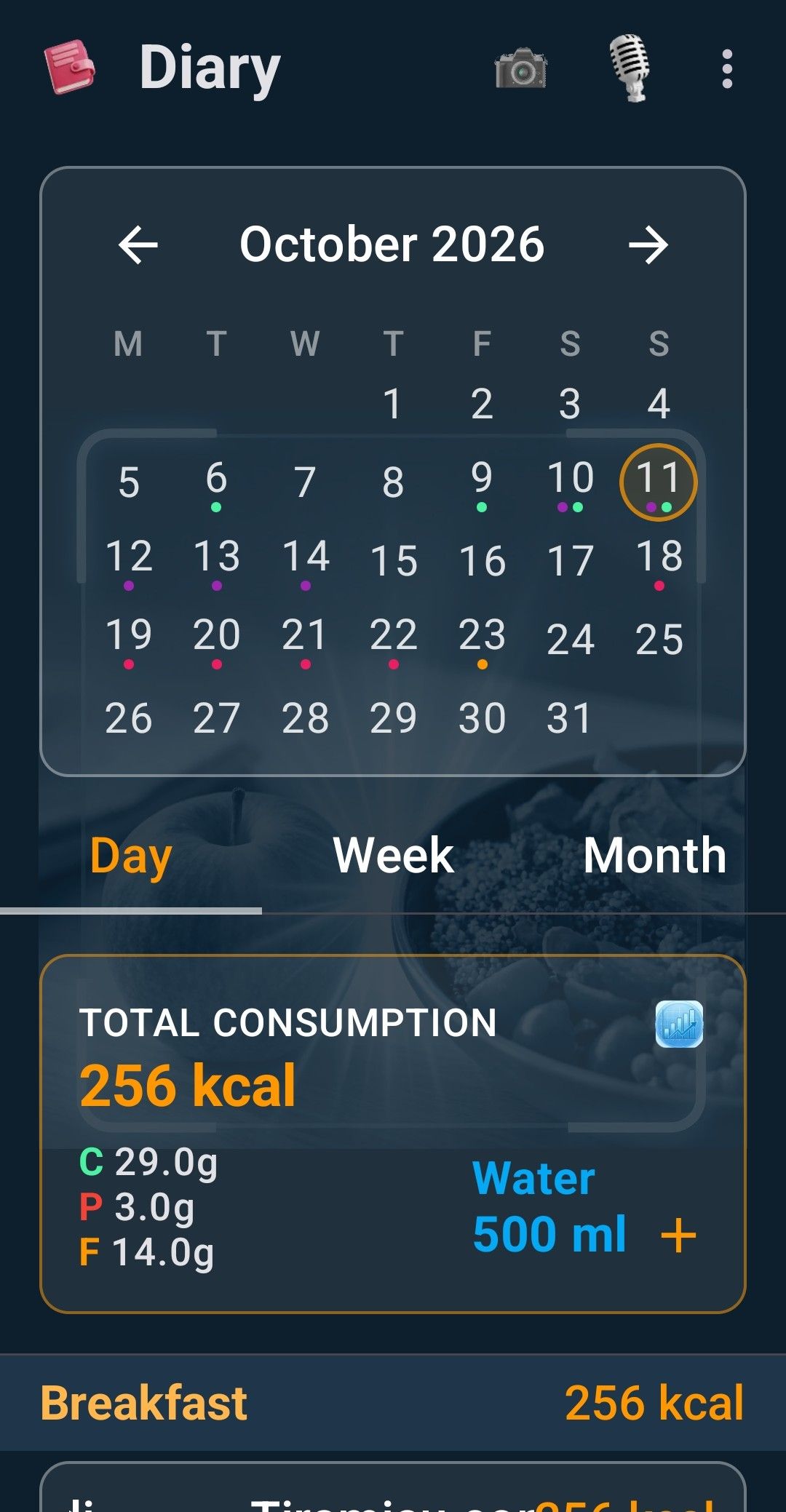
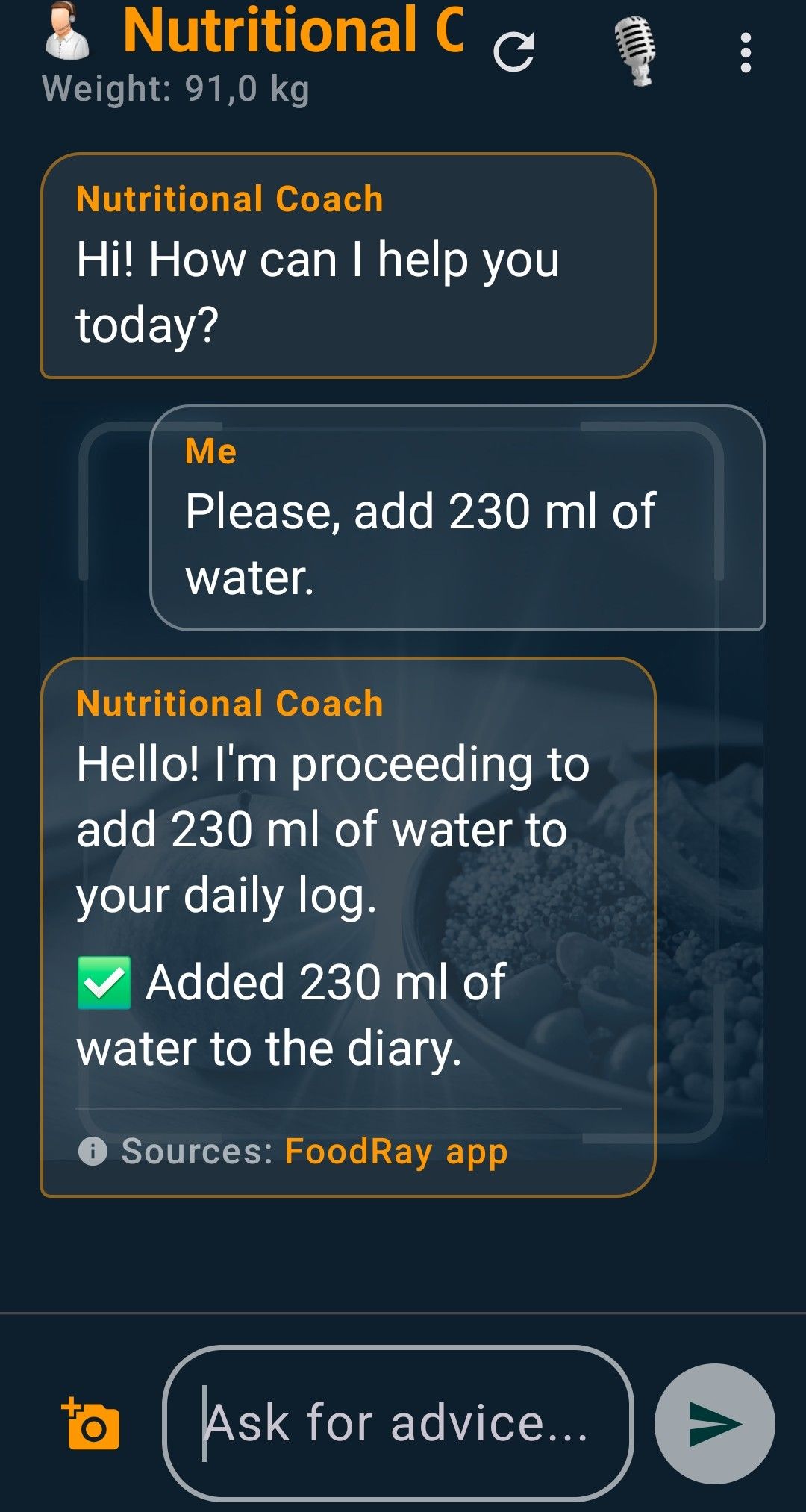
The Water box shows how much you have drunk: tap the + to add a glass (250 ml). You can customize the amount of water you have drunk through voice commands and the nutritional coach. To compare days, see the water intake chart.
4. Understanding the results
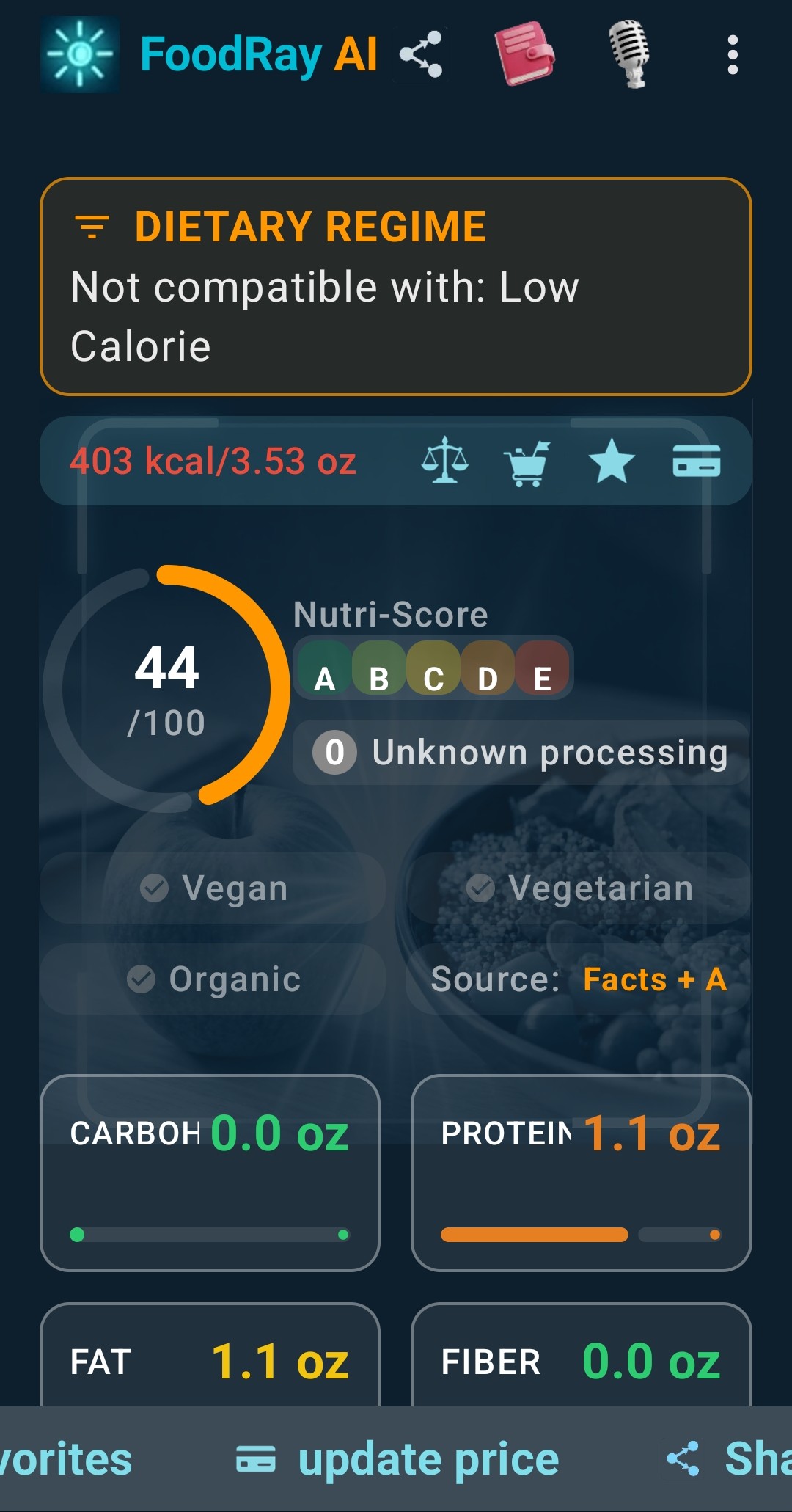
Every scanned or photographed food gets a card. Here is how to read it:
- Health Score (0–100): an overall rating of the food.
- Nutri-Score A–E: the colour scale from best (A) to worst (E).
- NOVA group: how processed the food is (for example Transformed or Ultra-processed).
- Diet badges: Vegan, Vegetarian, Organic and so on, with the data source shown.
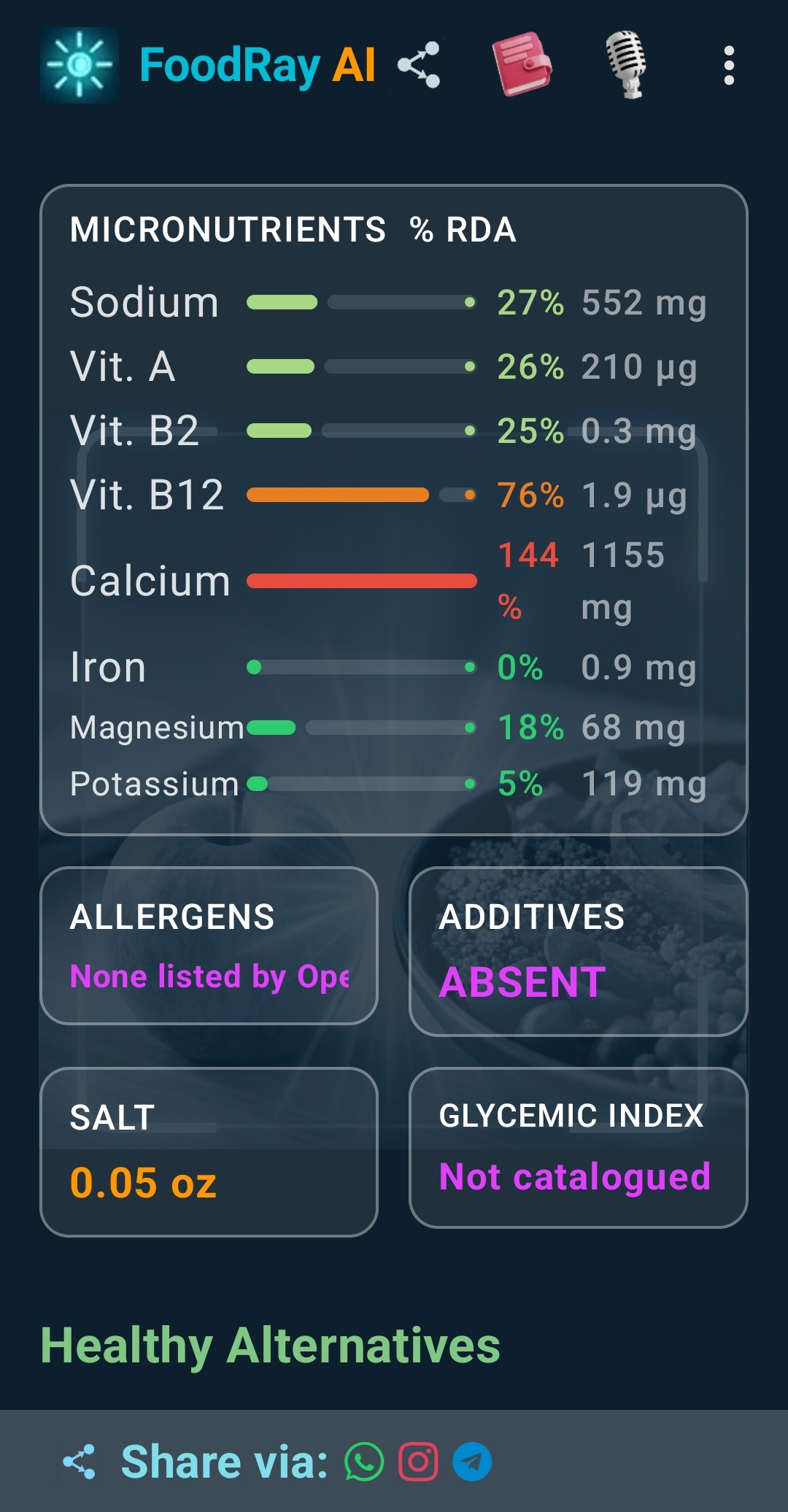
- Macros and micronutrients: carbohydrates, proteins, fat, fibre, plus 13 vitamins and minerals as a percentage of the European reference values.
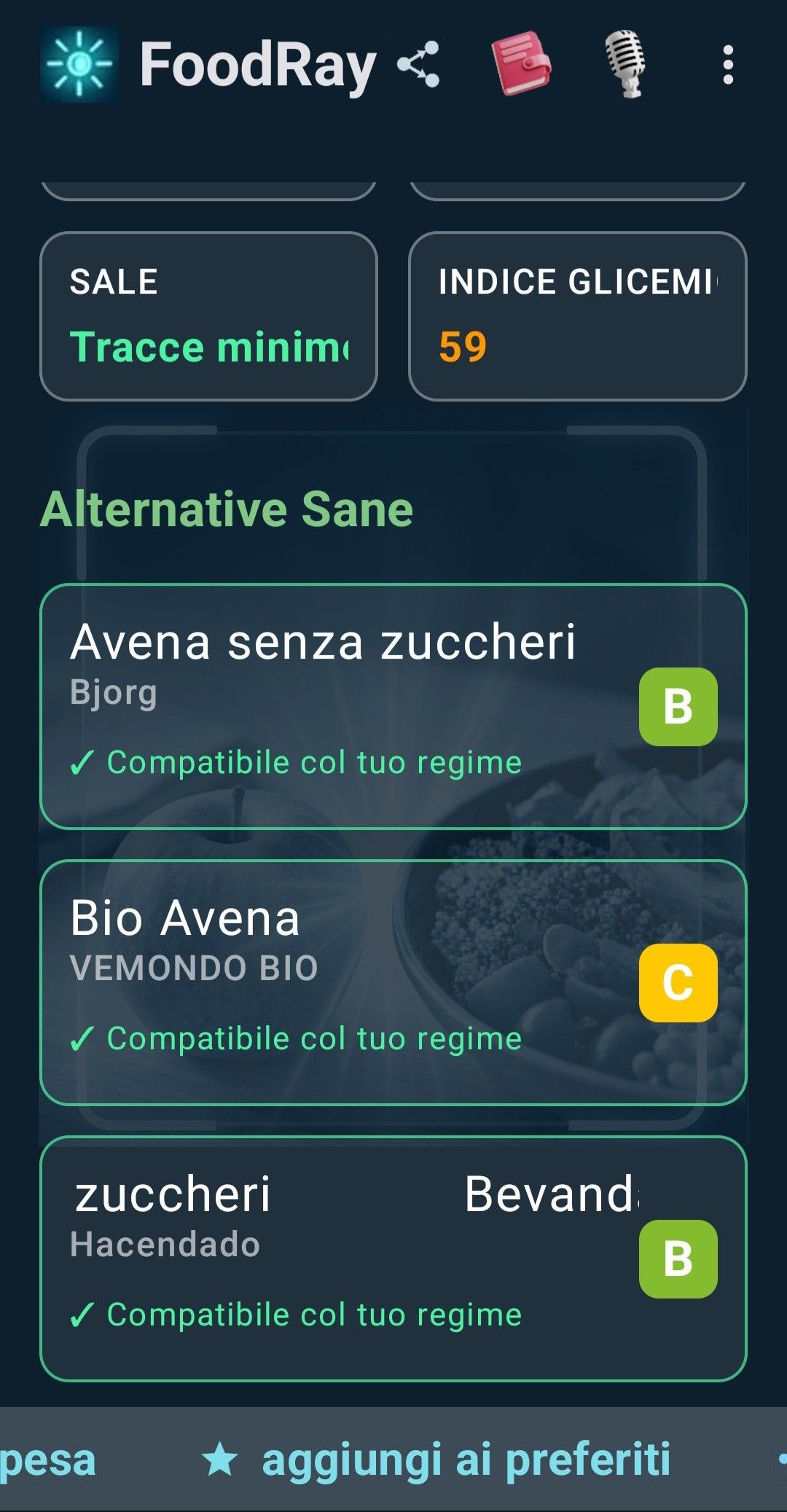
- Allergens, additives, salt and glycaemic index in the boxes below.
- Healthier alternatives: when a product scores poorly, up to three products of the same category with an equal or better score.
Food safety alerts
Products are also compared with the alerts of the European Commission's RASFF (Rapid Alert System for Food and Feed). If one is found, you get a visual and spoken warning. Always check the batch (lot) number on the package: an alert may concern only some batches, so the warning is a prompt to check, not confirmation that your product is affected.
5. Allergies, intolerances and diets
Get alerts based on your profile and available data. Always check ingredients and traces on the package. The app flags missing allergen data. At restaurants, confirm with staff. Photo or voice estimates cannot confirm ingredients or traces.
Allergies and intolerances
In My allergies / intolerances you tick what applies to you and tap Save. FoodRay AI manages 17: nickel, histamine, gluten (coeliac disease), lactose, milk proteins, crustaceans, molluscs, eggs, fish, peanuts, soy, tree nuts, celery, mustard, sesame, sulphites and lupin. You can also add custom allergens of your own.
On every scan the app checks the product data and shows a red WARNING — ALLERGEN box if something matches. If the allergen data for a product is missing, the app warns you instead of giving the all-clear.
Dietary regimes
In Dietary Regimes you can select up to nine: Vegan, Vegetarian (with the options to exclude eggs or dairy), Ketogenic, Gluten-Free, Lactose-Free, Mediterranean, Paleo, High-Protein and Low-Calorie. On every scan the app checks compatibility and flags conflicts in a yellow DIETARY REGIME box. The Coach also takes your diets into account when it answers.
6. The AI Coach
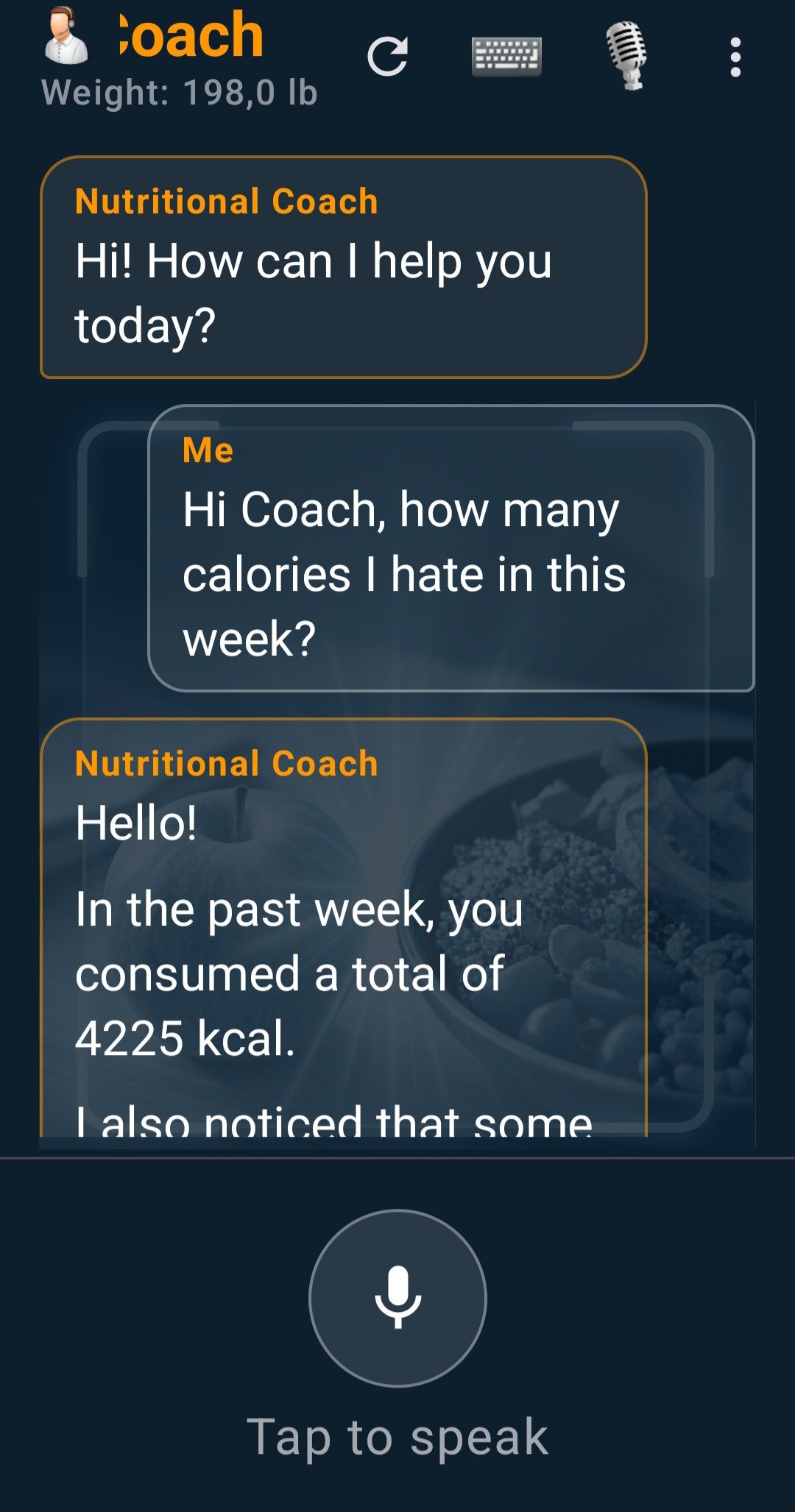
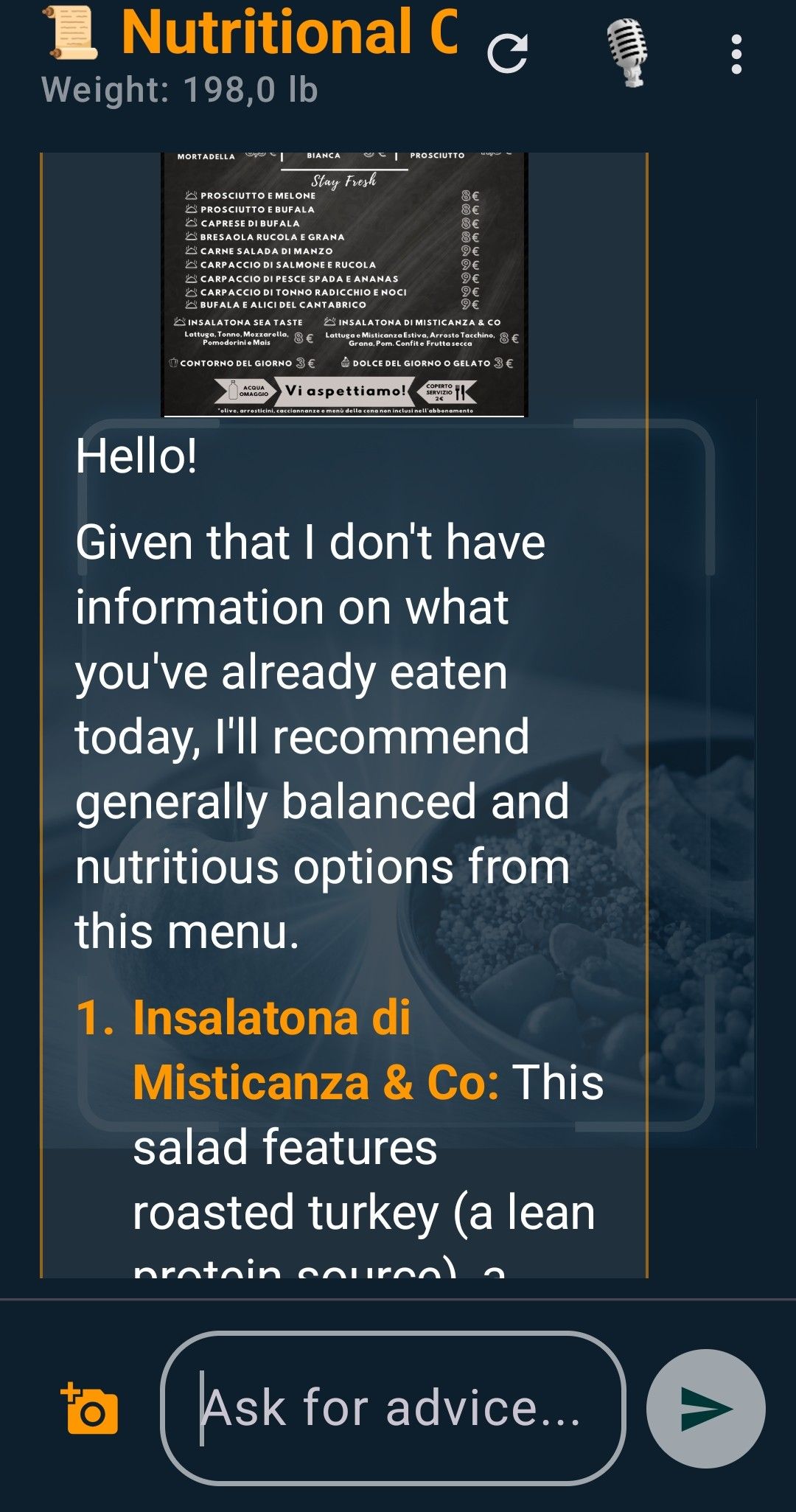
The Nutritional Coach is not a generic chatbot: it answers based on your real diary of the last 7 days, your goals, your weight trend and your active diets. Ask in writing or tap Tap to speak and talk to it.
- Weekly digest: every week the Coach sends you a personalised summary, without you asking.
- Restaurant Menu: photograph the menu before ordering with the camera button in the chat, and the Coach suggests the best options for your day.
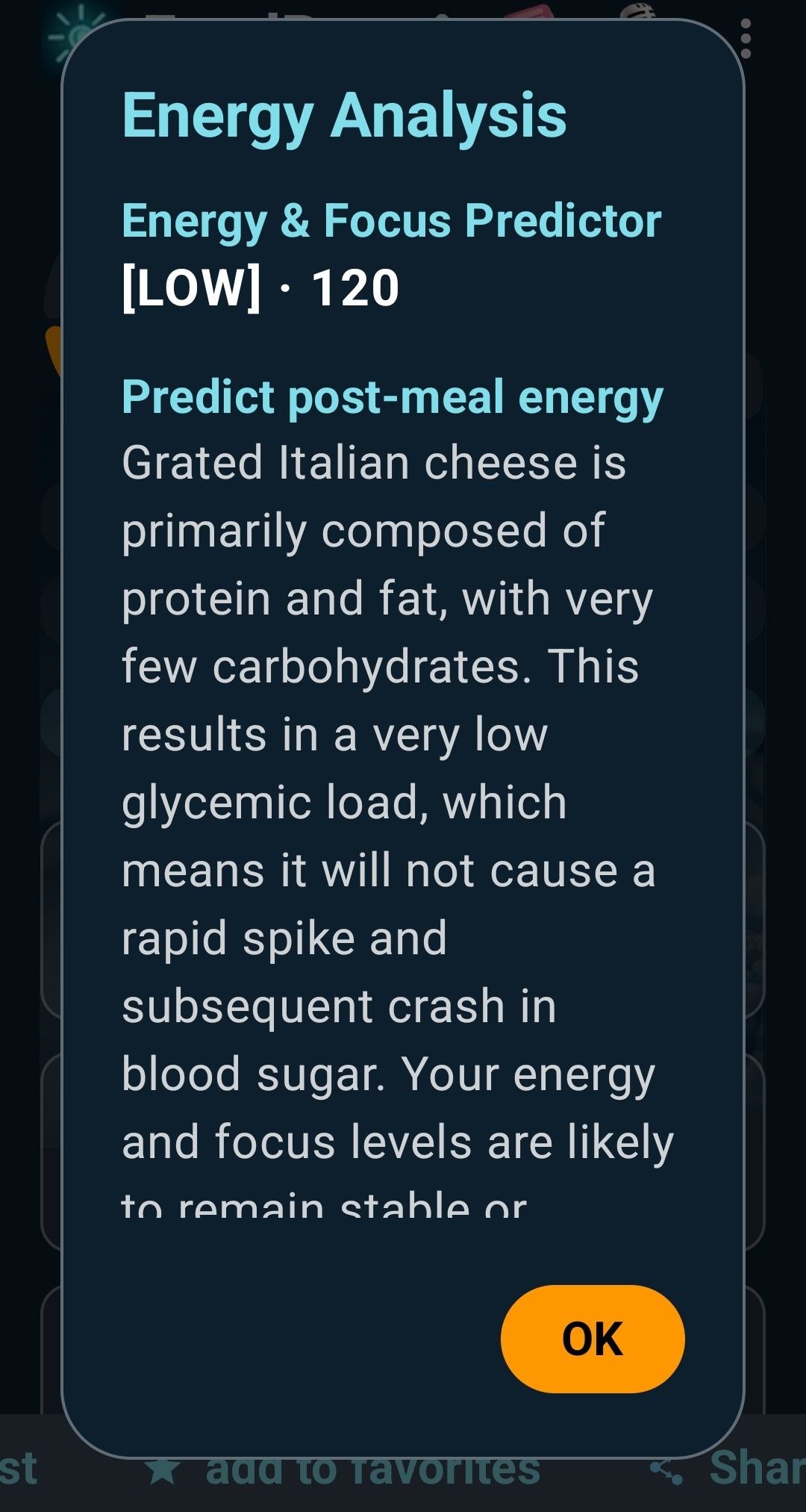
- Energy & Focus Predictor: estimates the risk of an energy or concentration drop in the next two hours, based on the presumed glycaemic load of what you ate.
- Conversations: find your past chats with the Coach.
7. Fridge, receipts, shopping list and budget
On iPhone 1.1, review the detected receipt lines and prices before saving. If the service does not respond, tap Retry.
Fridge Scan and Anti-Waste Recipes
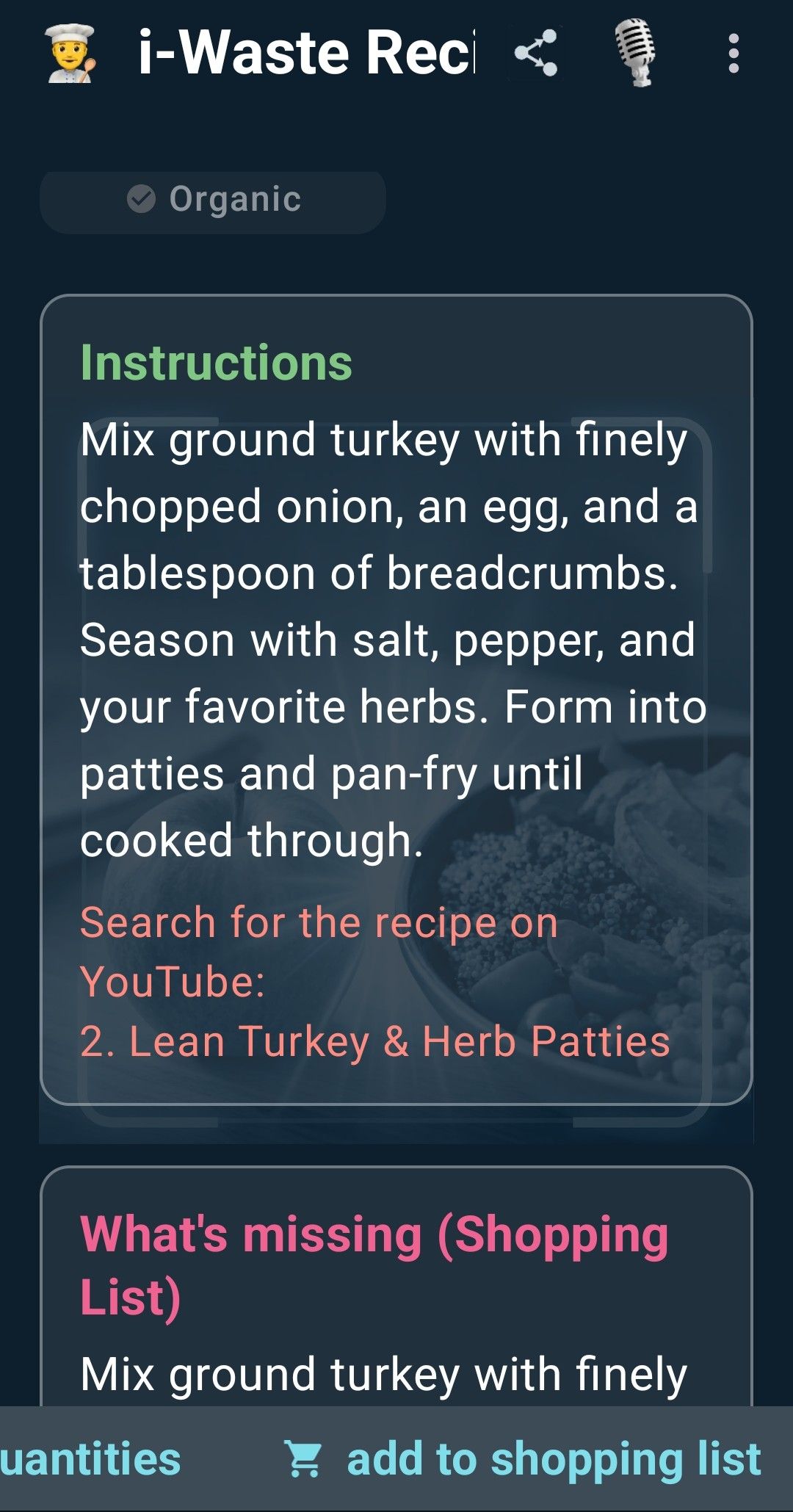
Photograph the inside of your fridge or your ingredients with Fridge Scan. The AI lists what it recognises and proposes zero-waste recipes using what you have. Missing ingredients can be added to the shopping list in one tap.
Receipt Analysis
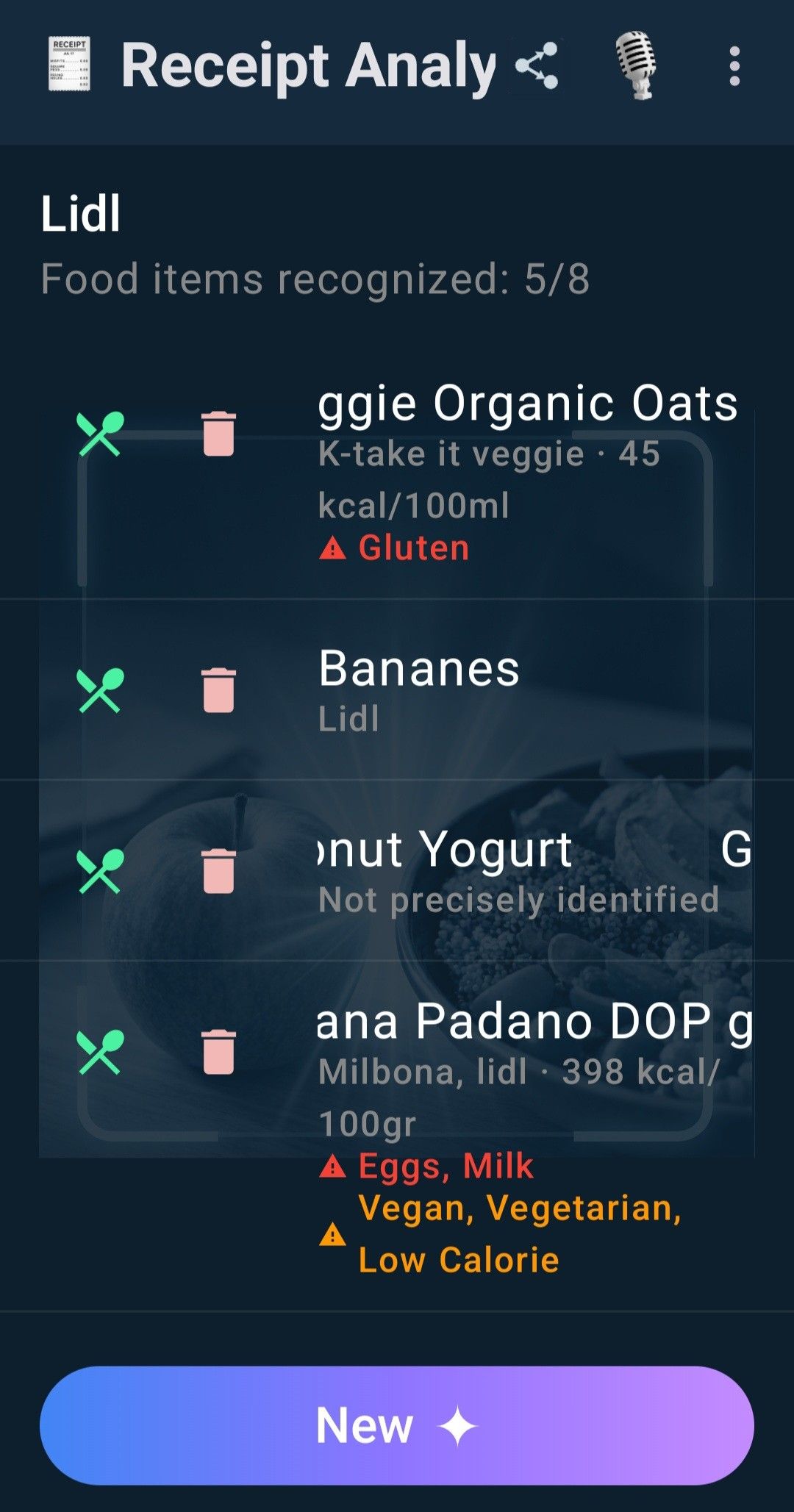
Photograph your receipt with Receipt Analysis: multi-page receipts are supported. The app reads the items, recognises the store and gives an overall score for your basket, flagging allergens item by item. Tap New to analyse another receipt.
Shopping List
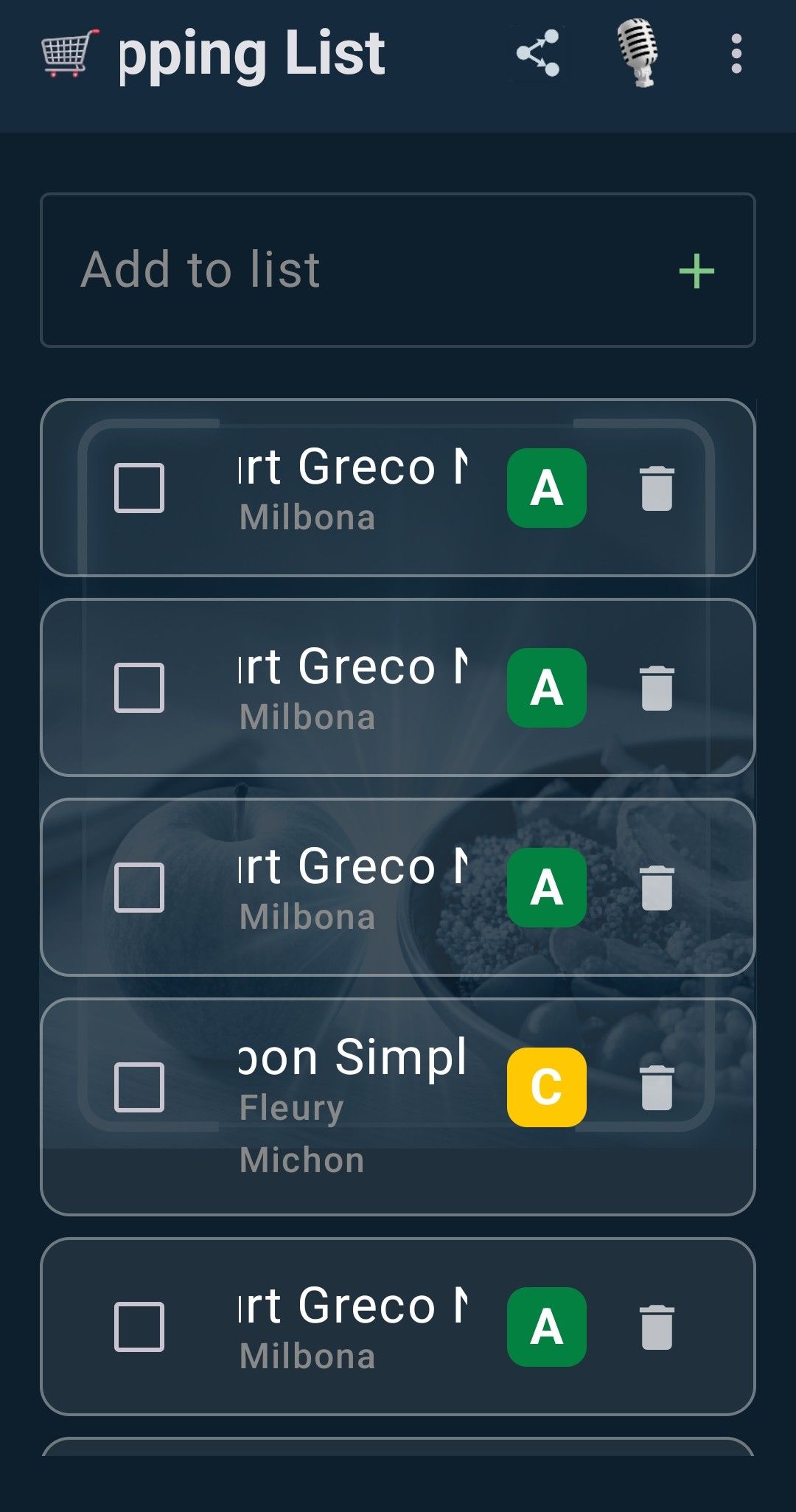
The Shopping List collects what you add manually, by voice, from recipes and from scans. Tick items as you buy them, delete them with the bin, share the list, and see each product's Nutri-Score at a glance.
Food spending and monthly budget
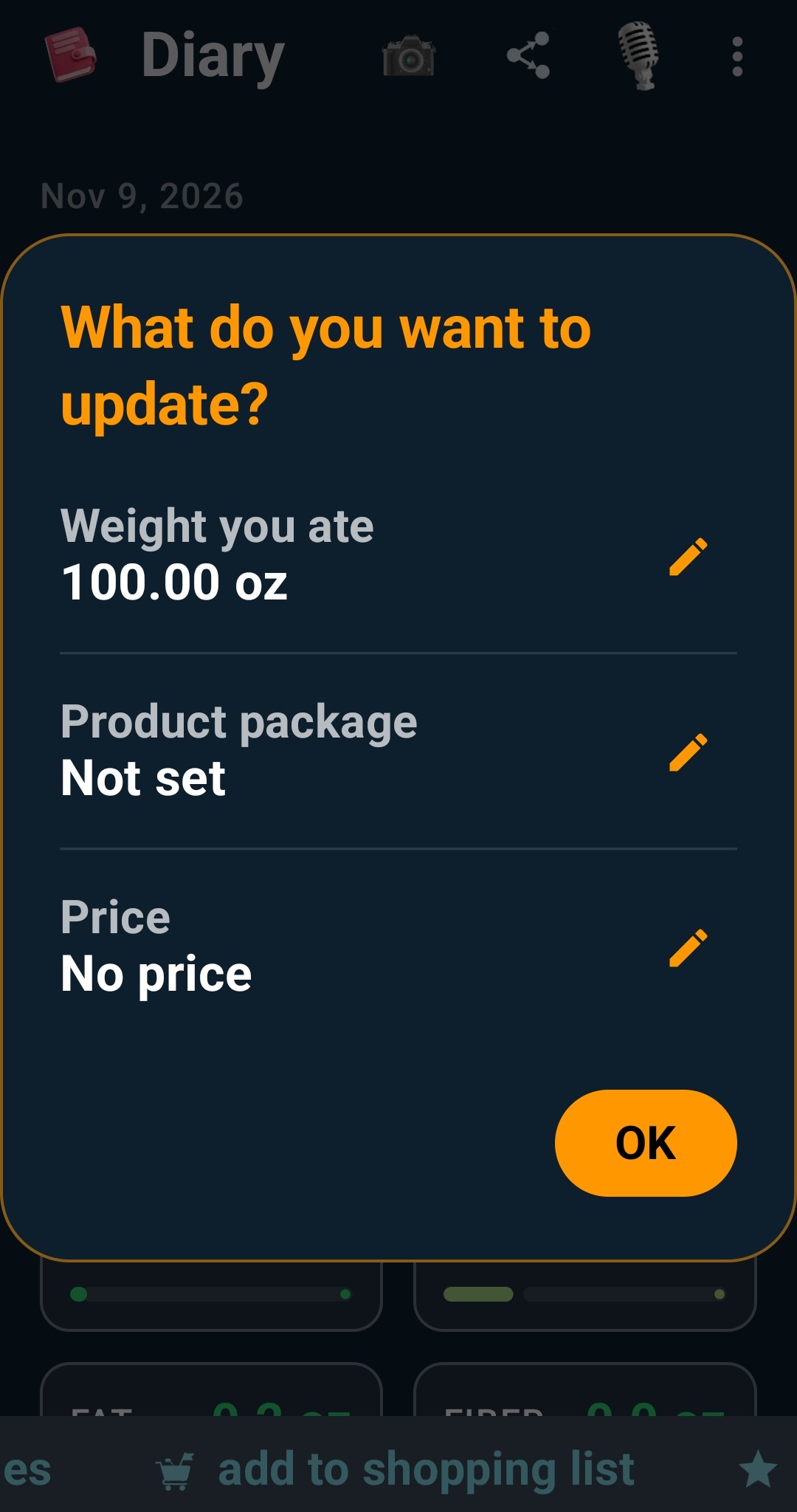
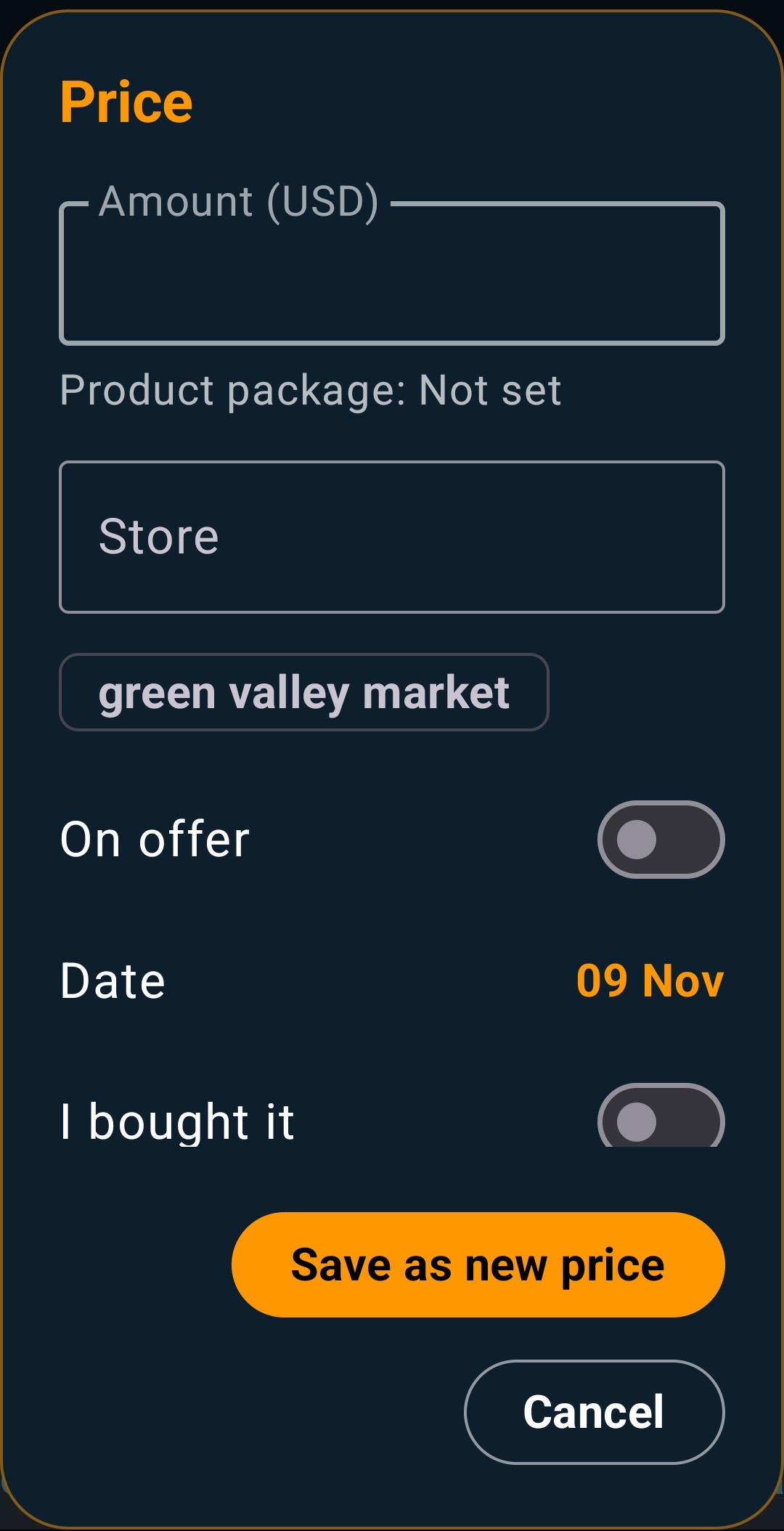
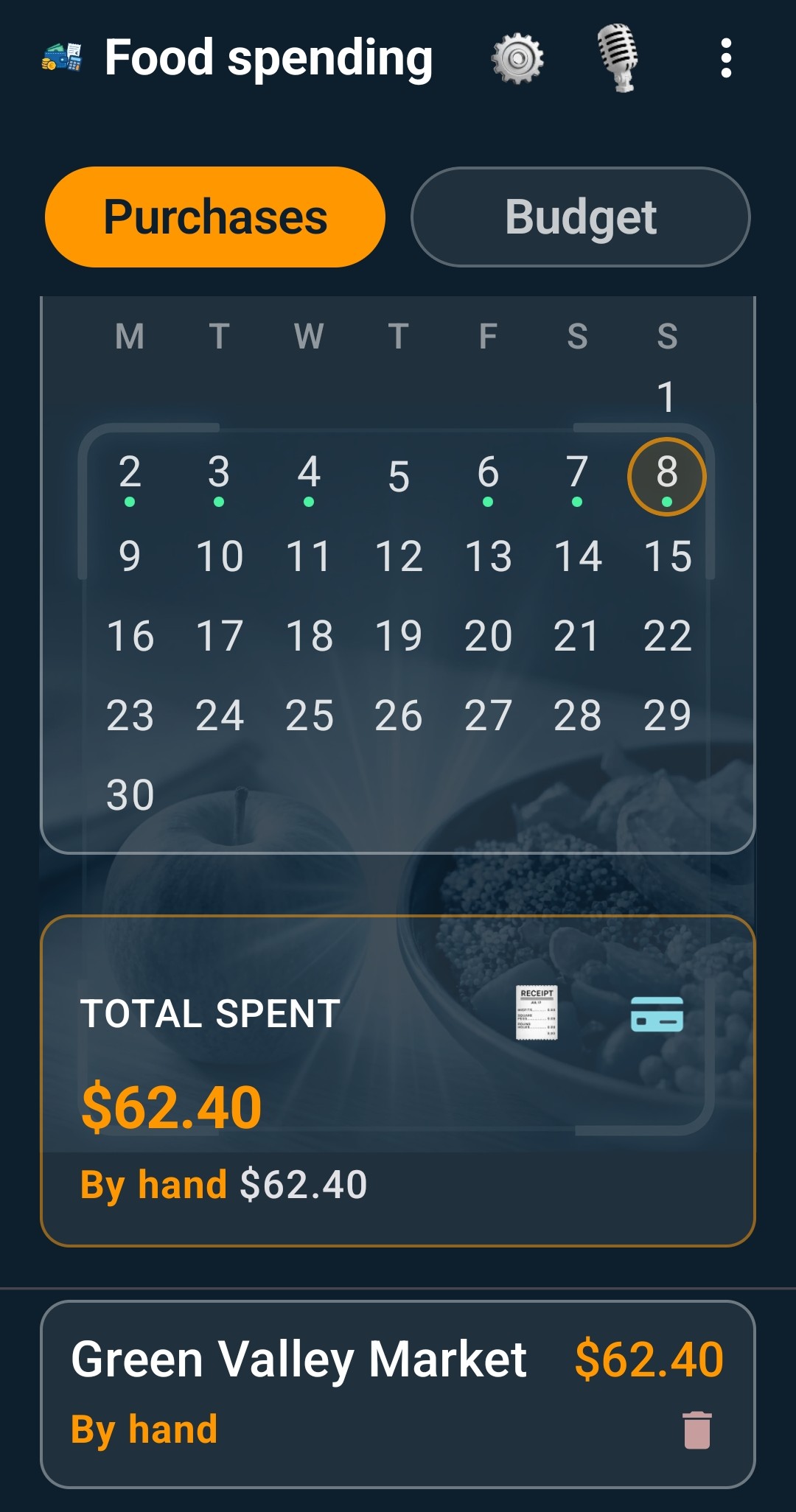
In the Diary, open the food details and tap the pencil next to Price. Enter the amount and store, check the date, and indicate whether the item is on offer. If you bought it, turn on I bought it, then save the price.
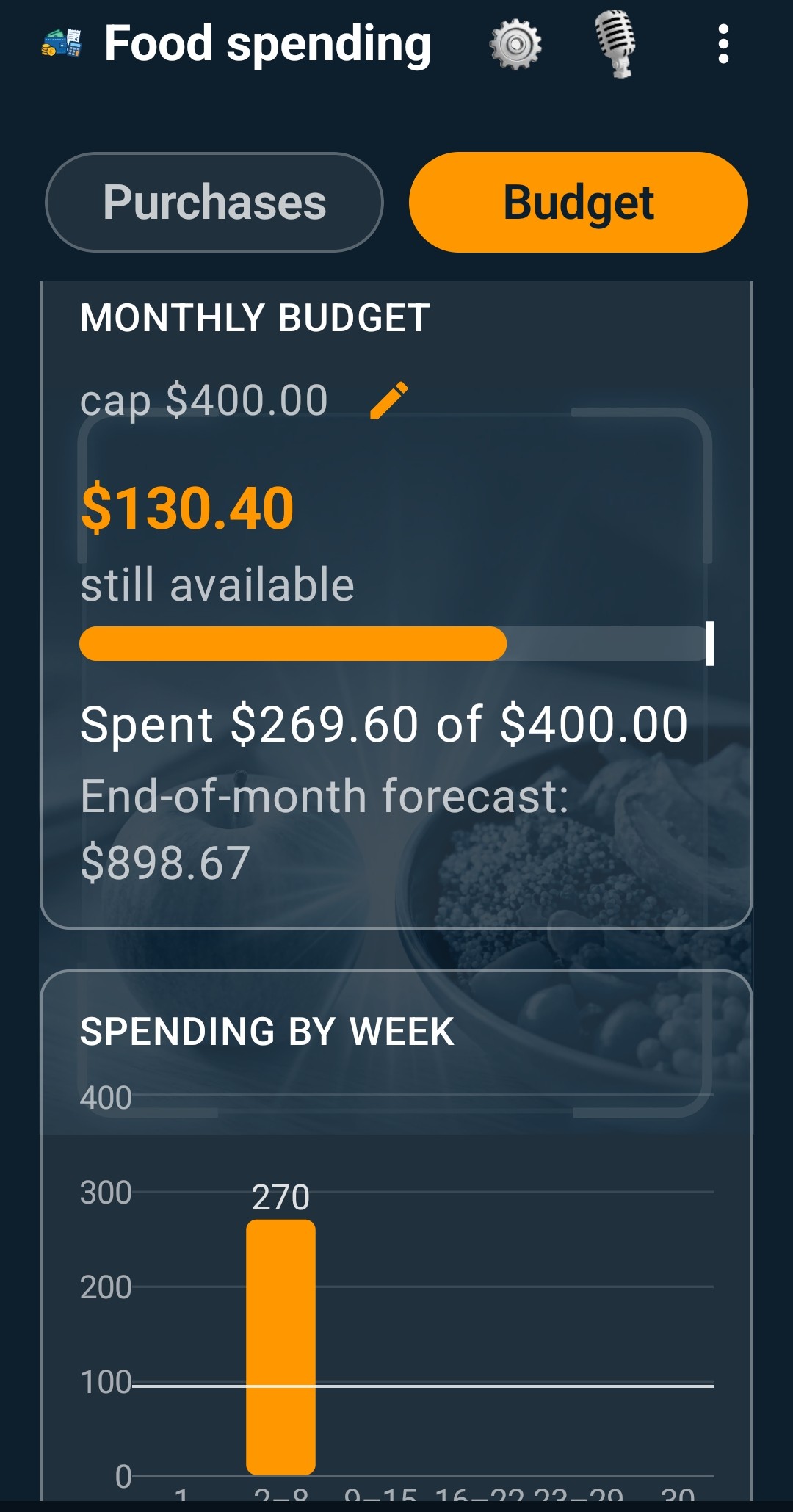
In Food spending, open Purchases and select a day in the calendar to see the purchases and total spent. In Budget, tap the pencil to set a monthly limit. You can see the amount spent, the remaining budget, the end-of-month forecast, and weekly spending.
8. Goals, trends and wellbeing
Nutritional Goals
Set daily calories, the percentage of proteins, carbohydrates and fats (the total must be 100%) and your current weight. Your calorie goal can be recalibrated week by week based on your real weight trend, not on a one-off calculation.
Nutritional Trend and Weight History
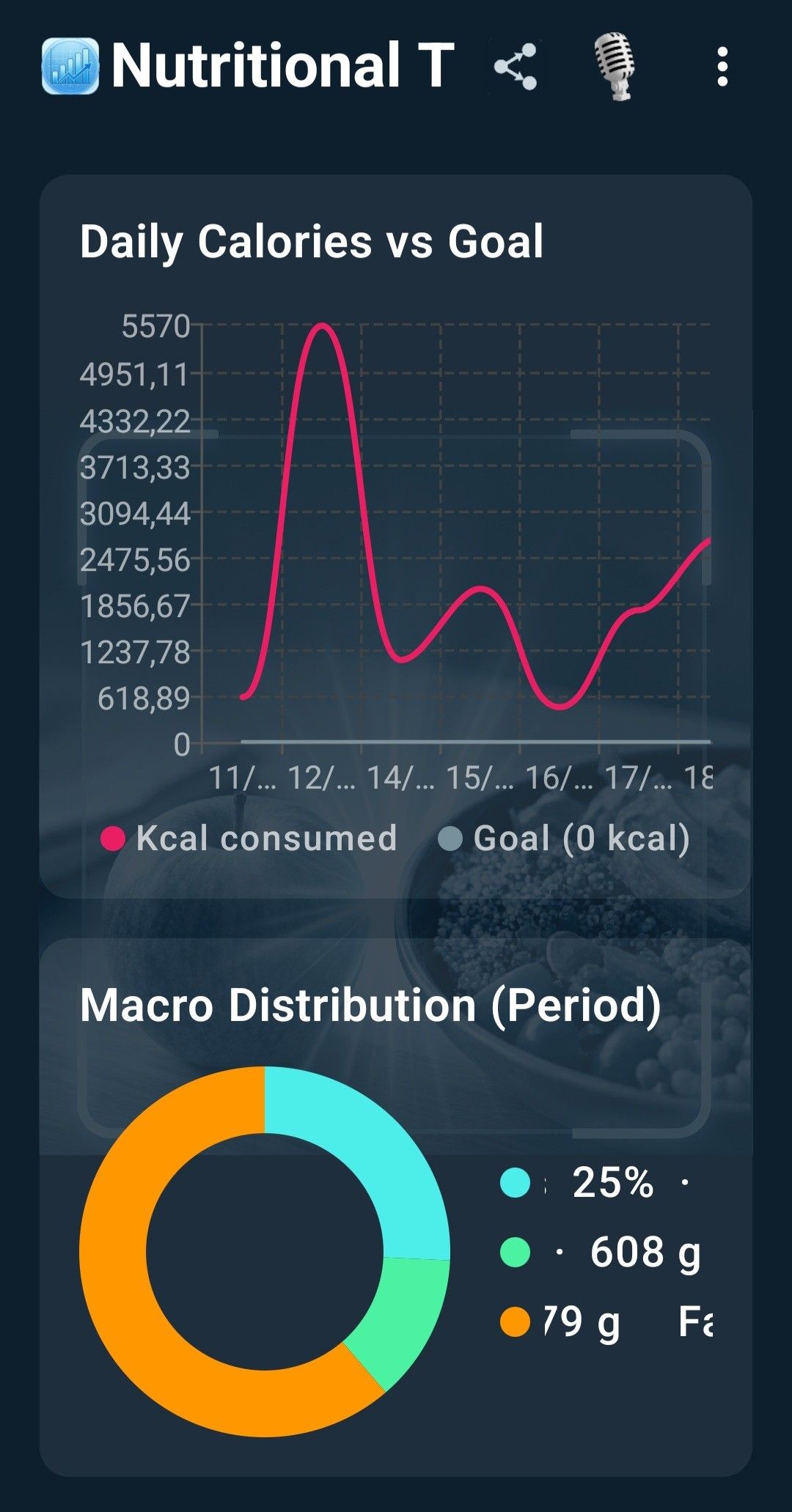
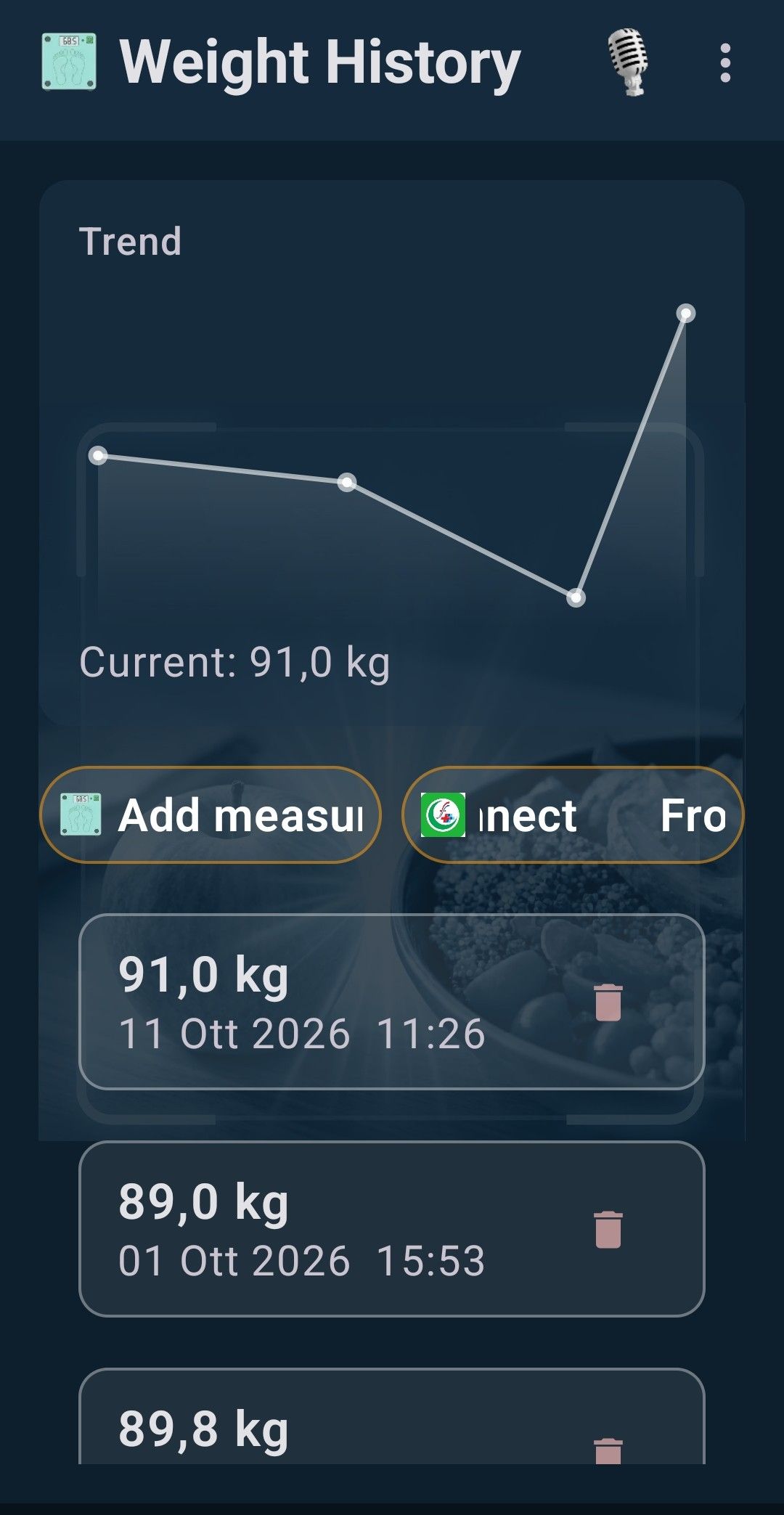
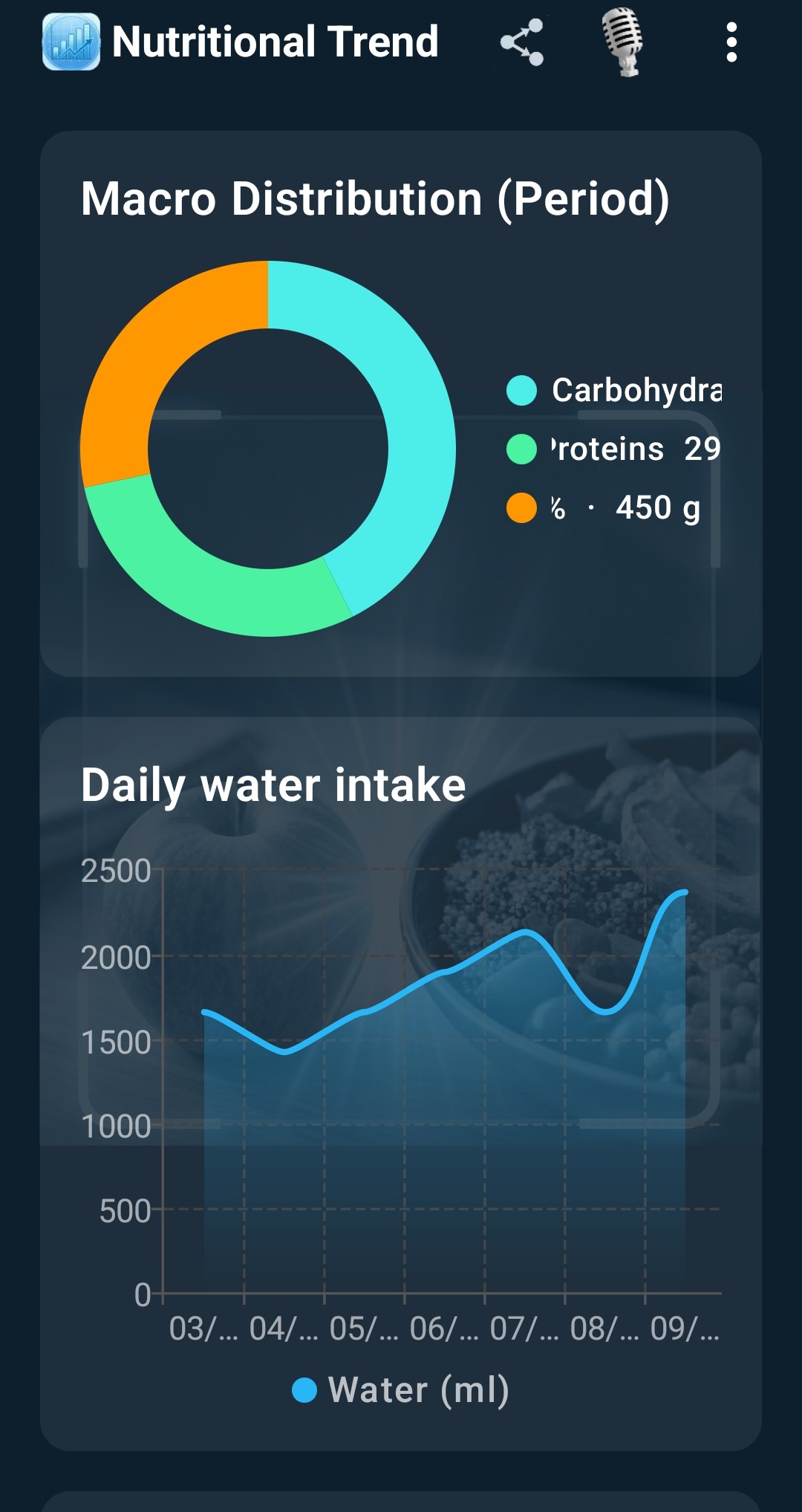
Nutritional Trend shows reports over 7, 14 or 30 days: daily calories against your goal, macro distribution, micronutrients and Nutri-Score classes. Weight History charts your weight and lets you add a measurement; on Android you can also import it from Health Connect.
Monitor water intake
In Nutritional Trend, scroll to the daily water intake chart. It shows how much water you logged each day in the selected period. To log water, return to the Diary.
Physical Activity
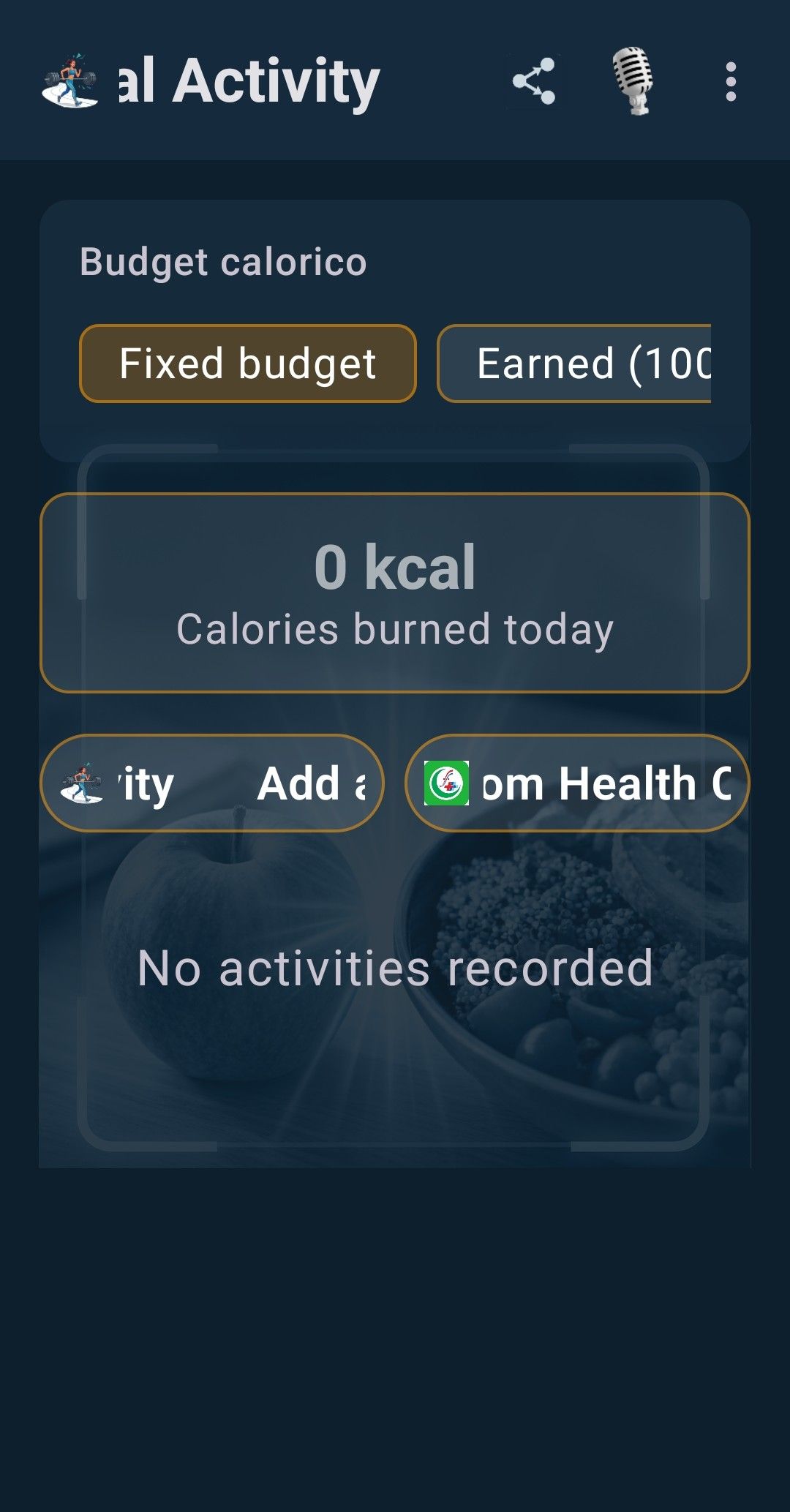
Log your workouts and choose how they count: Fixed budget keeps your daily calories unchanged, Earned adds the calories you burn to your budget.
Fasting Timer
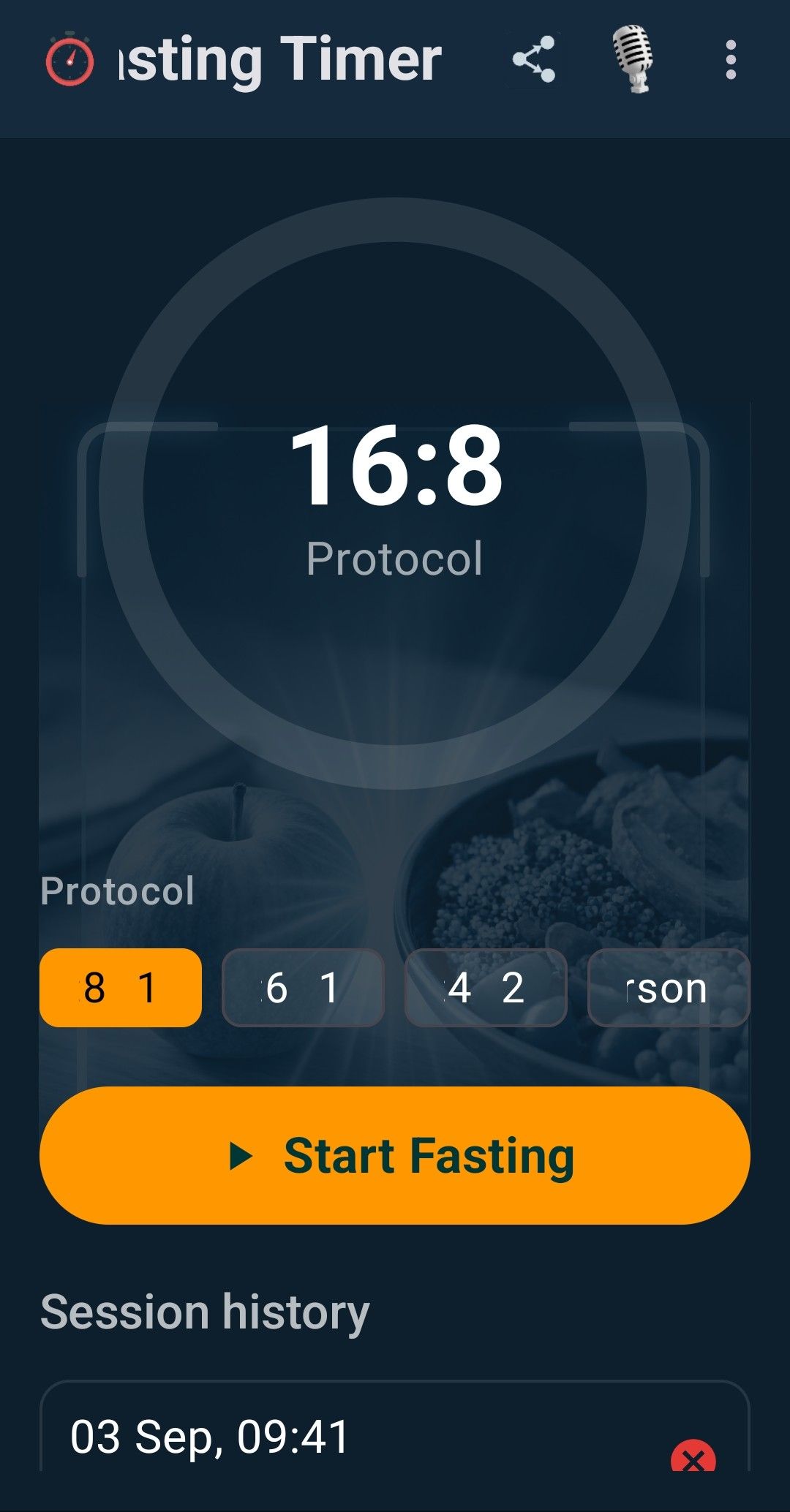
Choose a protocol (for example 16:8, 18 or 20 hours), tap Start Fasting and the timer counts down. You get a notification at the end of the window, you can set a system alarm, and the Session history keeps your fasts.
Menstrual Calendar
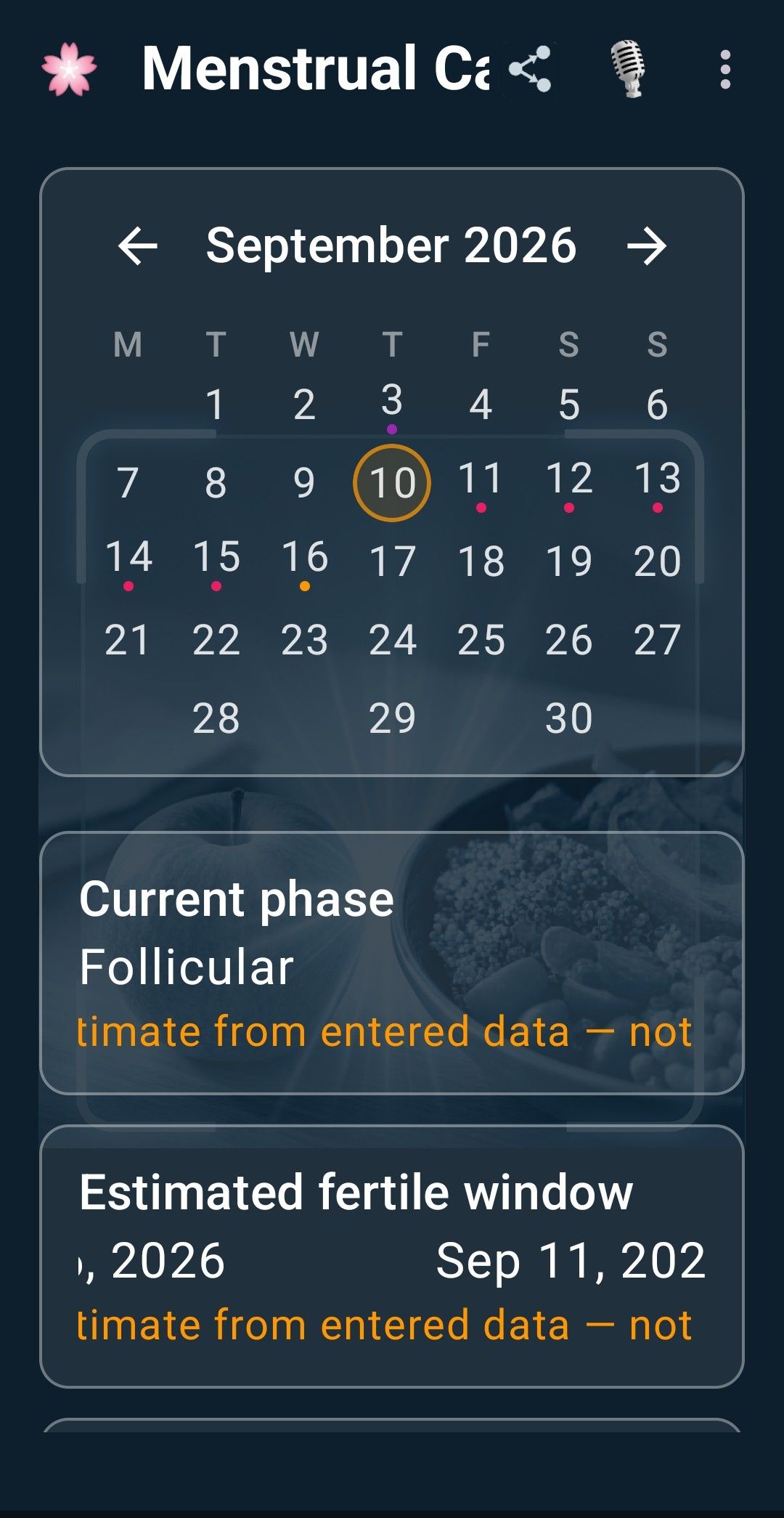
An optional feature: you enter your cycle data and the app shows the current phase and an estimated fertile window. It is health data of a sensitive kind and is used only with your explicit consent, which you can withdraw at any time. The figures are estimates and are not a medical or contraceptive method.
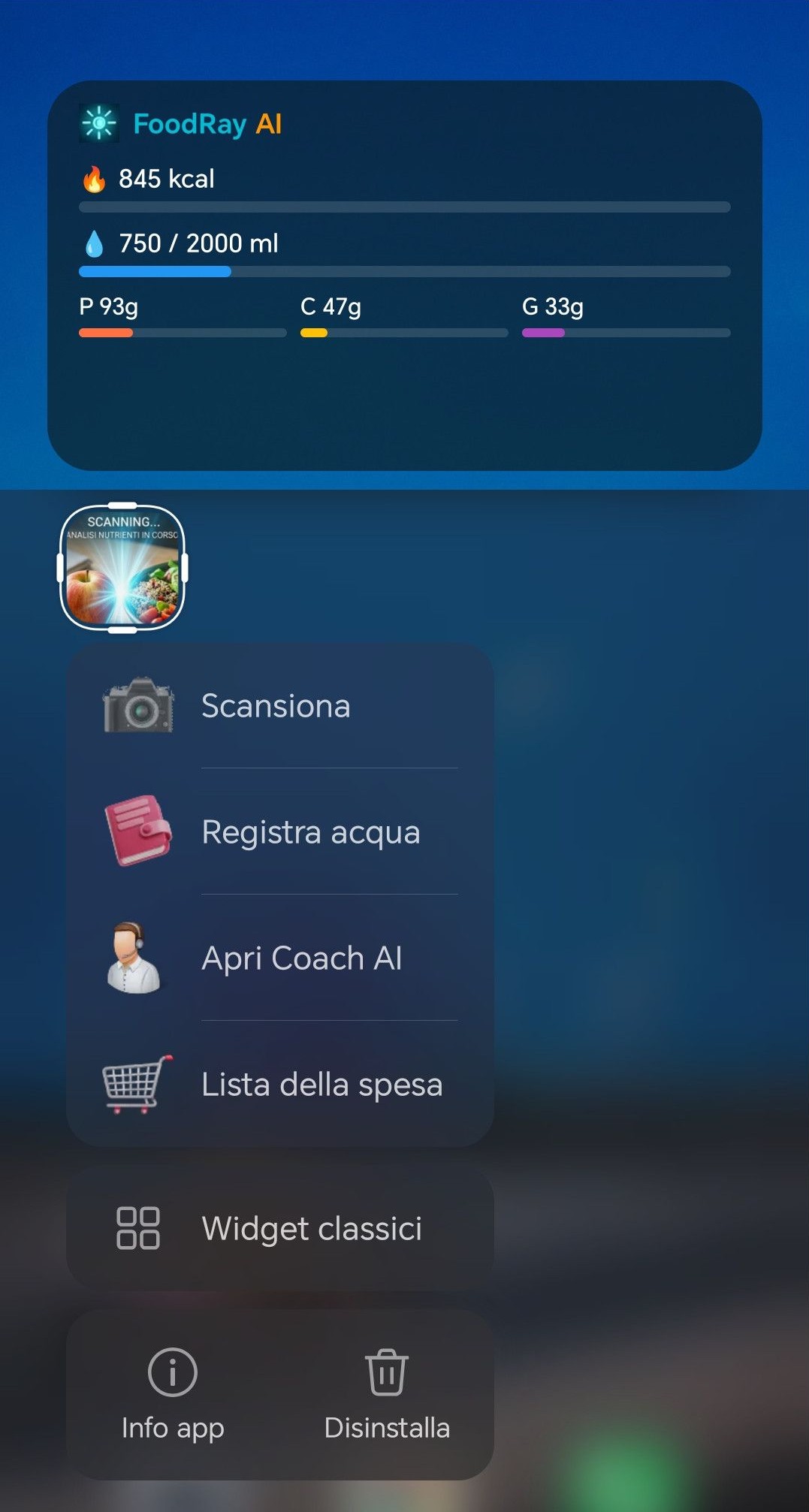
Widget and shortcuts
9. Voice control
The microphone in the top bar is available on every screen. Use it to open your diary, log a glass of water, add items to the shopping list, share a card or ask the Coach a question, all by voice.
- The app speaks and listens in 11 languages: Italian, English, French, German, Spanish, Arabic, Chinese, Japanese, Korean, Russian and Hebrew.
- Over time the app learns your phrases and reduces AI calls at every use. You find the number of learned phrases in Usage & Billing.
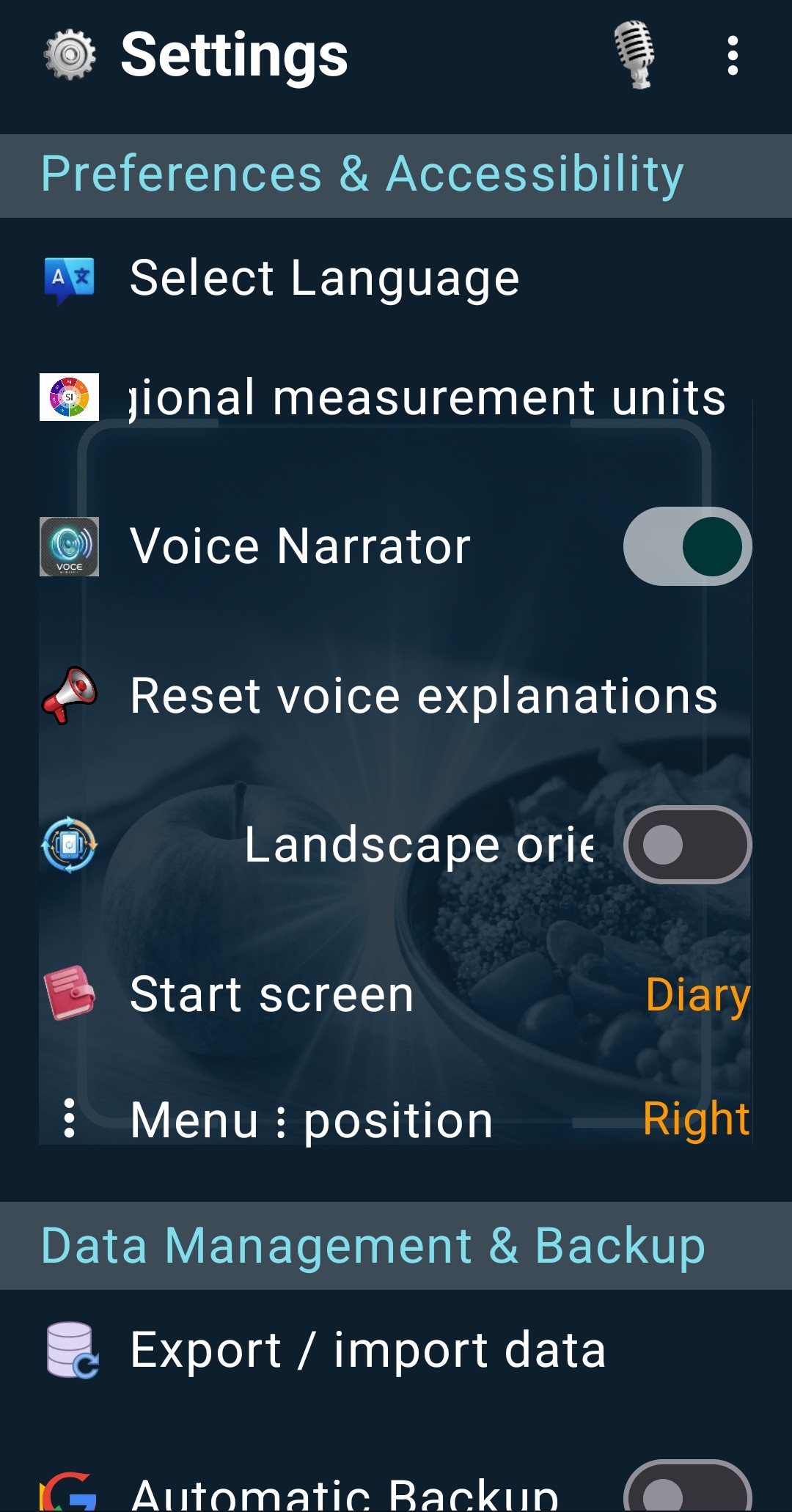
- In Settings you can turn the Voice Narrator on or off and reset the voice explanations.
Speech recognition is provided by your phone's operating system: depending on your device and settings, audio may be processed on the device or on the platform's servers, as described in Apple's and Google's privacy information.
10. Settings and backup
Open Settings from the menu.
- Select Language and Units (15 measurement units).
- Voice Narrator and Reset voice explanations.
- Orientation: choose your preferred view, portrait or landscape.
- Side menu: choose whether the menu appears on the right or on the left (for left-handed users).
- Data Management & Backup: save a local copy of your data, restore it, and turn Automatic Backup on or off.
Changing phone, even between iPhone and Android
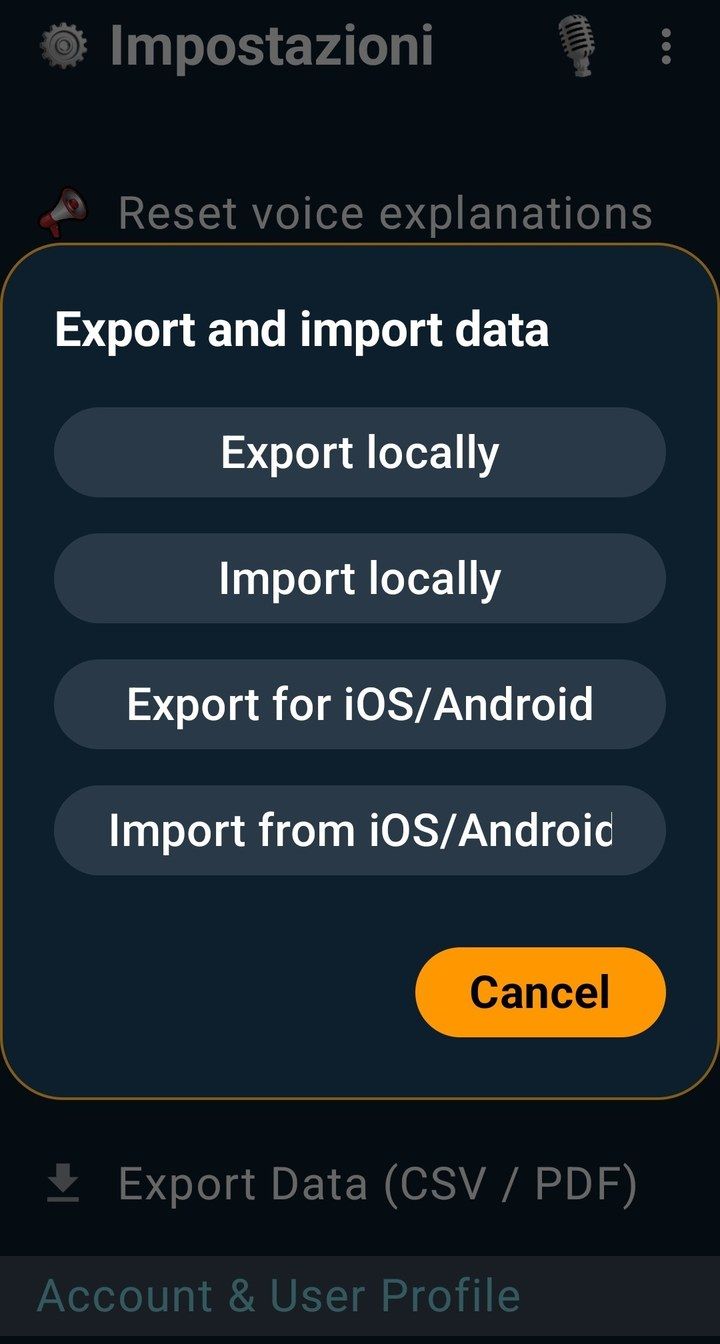
Automatic backup stays within each platform (iCloud on iPhone, Google Drive on Android), so it cannot move your data from an iPhone to an Android phone or the other way round. For that, use the cross-platform export: it creates a file that you can import on the new phone, whichever system it runs.
- On your old phone open Settings → Export and import data and tap Export for iOS/Android.
- Save or send the file to a place you can reach from the new phone (for example your cloud storage or an email to yourself).
- On the new phone install FoodRay AI, open Settings → Export and import data, tap Import from iOS/Android and choose the file.
11. Usage, subscriptions and billing
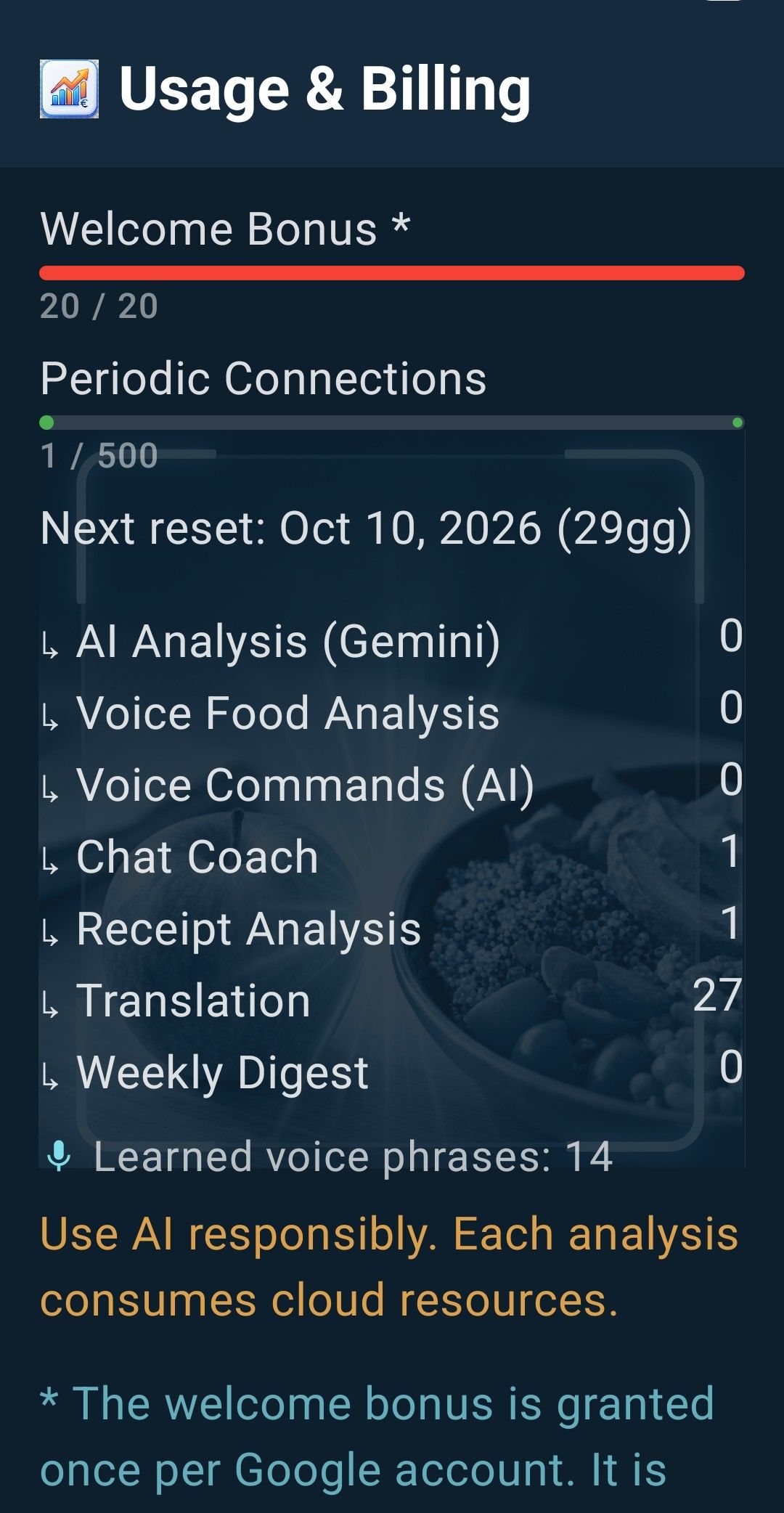
Open Usage & Billing from the menu to see your AI connections and manage your plan.
- Welcome bonus: 20 connections, granted once per account. It is not renewed.
- Free plan: 5 connections every month, with no carry-over.
- Monthly and Annual subscriptions: 500 connections every month. Unused connections move to the next month, up to 250, as long as the subscription stays active.
- Translation is always free and never uses connections.
- The screen shows how many connections you used for each activity (food analysis, voice, coach, receipts and so on) and the date of the next reset.
Subscribe, restore, cancel
- Subscriptions are monthly or annual, renew automatically and are paid through the App Store or Google Play.
- A subscription is linked to one FoodRay account. If you reinstall or change phone, sign in with the same account and use Restore Purchases on iPhone.
- To cancel: iPhone: Settings → your name → Subscriptions → FoodRay. Android: Google Play → profile icon → Payments & subscriptions → Subscriptions → FoodRay. Cancelling takes effect at the end of the period you already paid for.
- Refunds are handled by Apple (reportaproblem.apple.com) or Google Play (order history).
12. Account, privacy and data deletion
- Sign Out is in the menu. You can sign back in with the same method you used to register.
- Delete your account and data: Settings → Account & User Profile → Delete Account and Data. It is immediate and removes your local data, backups, learned voice phrases and login account. It does not cancel an active subscription (cancel it first in the store) and unused connections cannot be recovered.
- Full details are in the Privacy Policy.
13. Notes and troubleshooting
- The app does not recognise a photo or a voice entry: check your connection, frame the dish in good light and speak close to the microphone.
- AI connections are used up: see Usage & Billing for the date of the next reset.
- A value or a product looks wrong: data from public sources can contain errors; check the label and report it to us.
- Subscription not showing: sign in with the account used for the purchase and use Restore Purchases (iPhone).
Still need help?
Try the quick assistant: it answers the most common questions straight away. If you still need us, write through the contact form.
Go to Contacts